Of course! Let's dive deep into the String.format() method in Java and its use of the percent sign () as a format specifier.

The Big Picture: What is String.format()?
String.format() is a powerful and convenient method in Java that allows you to create formatted strings. It works similarly to the printf() function in languages like C or C++, and it's the modern, recommended way to build strings with dynamic content.
Instead of concatenating strings with the operator, which can be inefficient and hard to read, you define a template and fill in the blanks.
// The old, clunky way
String name = "Alice";
int score = 95;
String message = "Hello, " + name + "! Your score is " + score + ".";
// The modern, clean way using String.format()
String formattedMessage = String.format("Hello, %s! Your score is %d.", name, score);
System.out.println(formattedMessage);
// Output: Hello, Alice! Your score is 95.
The key to this magic is the format specifier, which always starts with a percent sign ().
The Anatomy of a Format Specifier
A basic format specifier has this structure:
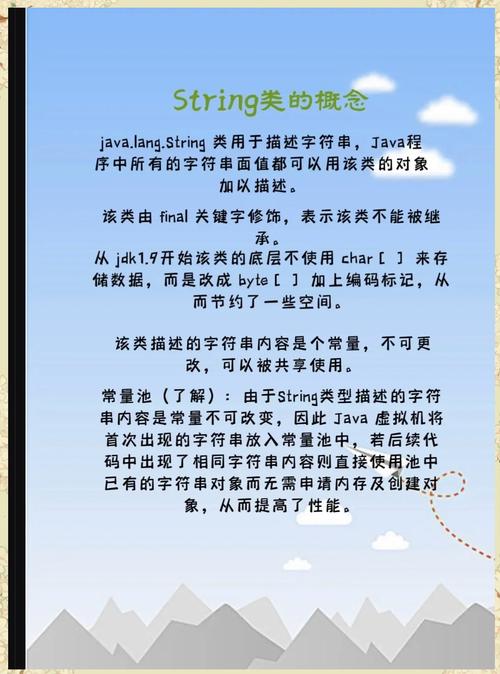
%[flags][width][.precision]conversion
Let's break down each part:
-
: The marker that indicates the start of a format specifier.
-
conversion(Required): This is the most important part. It's a single character that tells Java what type of data to expect and how to format it.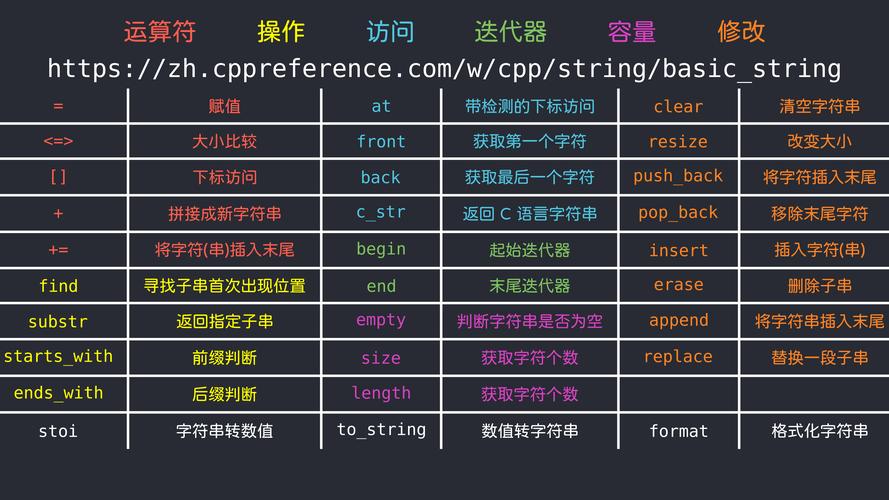 (图片来源网络,侵删)
%s: For Strings.%d: For decimal integers (base 10).%f: For floating-point numbers.%c: For character.%b: For boolean.%n: For a platform-independent newline character. This is highly recommended over\n.- And many more (see the full list below).
-
width(Optional): A number specifying the minimum width of the output. If the data is shorter than this width, it will be padded with spaces (by default). If it's longer, it will not be truncated.%5d: The integer will take up at least 5 characters.%10s: The string will take up at least 10 characters.
-
.precision(Optional): A period () followed by a number. Its meaning depends on theconversion:- For
%f, it specifies the number of digits to print after the decimal point. - For
%s, it specifies the maximum number of characters to print from the string. - For
%d, it specifies the minimum number of digits to print, padding with leading zeros if necessary.
- For
-
flags(Optional): Special characters that modify the output format.- Left-justify the output within the given width (default is right-justified).
- Always include a sign ( or ) for numbers.
0: Pad with leading zeros instead of spaces.- Use locale-specific grouping separators (e.g., a comma for thousands).
- Enclose negative numbers in parentheses.
Examples by Conversion Type
Let's see these specifiers in action.
%s - String
String name = "Bob";
String city = "New York";
// Basic usage
System.out.println(String.format("Name: %s", name));
// Output: Name: Bob
// Width and justification
System.out.println(String.format("|%10s|", name)); // Right-justified, width 10
// Output: |       Bob|
System.out.println(String.format("|%-10s|", name)); // Left-justified, width 10
// Output: |Bob       |
// Precision (max characters)
System.out.println(String.format("%.5s", city)); // Print first 5 characters
// Output: New Y
%d - Decimal Integer
int population = 9876543;
int smallNumber = 42;
// Basic usage
System.out.println(String.format("Population: %d", population));
// Output: Population: 9876543
// Width and zero-padding
System.out.println(String.format("ID: %8d", smallNumber)); // Width 8, padded with spaces
// Output: ID:      42
System.out.println(String.format("ID: %08d", smallNumber)); // Width 8, padded with zeros
// Output: ID: 00000042
// Precision (minimum digits, with leading zeros)
System.out.println(String.format("%05d", smallNumber));
// Output: 00042
%f - Floating-Point Number
double price = 19.99;
double pi = 3.14159265;
// Basic usage
System.out.println(String.format("Price: %f", price));
// Output: Price: 19.990000  // Default is 6 decimal places
// Precision (number of decimal places)
System.out.println(String.format("Pi: %.2f", pi));
// Output: Pi: 3.14
System.out.println(String.format("Pi: %.4f", pi));
// Output: Pi: 3.1416
// Width and comma flag for thousands
double largeNumber = 1234567.89;
System.out.println(String.format("|%15.2f|", largeNumber));
// Output: |   1234567.89|
System.out.println(String.format("|%015.2f|", largeNumber)); // Zero-padding
// Output: |00001234567.89|
System.out.println(String.format("|%,15.2f|", largeNumber)); // Comma separator
// Output: |  1,234,567.89|
Other Common Specifiers
char grade = 'A';
boolean isStudent = true;
int value = -5000;
System.out.println(String.format("Grade: %c", grade));
// Output: Grade: A
System.out.println(String.format("Is Student: %b", isStudent));
// Output: Is Student: true
System.out.println(String.format("Value: %d", value));
// Output: Value: -5000
System.out.println(String.format("Value with + flag: %+d", value));
// Output: Value with + flag: -5000
System.out.println(String.format("Value with ( flag: %(d", value));
// Output: Value with ( flag: (5000)
System.out.println(String.format("This is a new line: %nAnd this is on the next line."));
// Output: This is a new line:
//         And this is on the next line.
A Complete Example: Formatting a Receipt
Here’s a practical example that combines many of these concepts.
String itemName = "Super Widget";
int quantity = 2;
double unitPrice = 49.99;
double taxRate = 0.08;
double subtotal = quantity * unitPrice;
double tax = subtotal * taxRate;
double total = subtotal + tax;
String receipt = String.format(
    "--------------------------%n" +
    "         RECEIPT          %n" +
    "--------------------------%n" +
    "Item:      %s%n" +
    "Quantity:  %d%n" +
    "Unit Price: $%7.2f%n" +
    "Subtotal:  $%7.2f%n" +
    "Tax (8%%):  $%7.2f%n" + // Note the %% to print a literal '%'
    "--------------------------%n" +
    "TOTAL:     $%7.2f%n" +
    "--------------------------",
    itemName, quantity, unitPrice, subtotal, tax, total
);
System.out.println(receipt);
Output:
--------------------------
         RECEIPT
--------------------------
Item:      Super Widget
Quantity:  2
Unit Price: $  49.99
Subtotal:  $  99.98
Tax (8%):  $   8.00
--------------------------
TOTAL:     $ 107.98
--------------------------
Key Takeaways
- Use
String.format()for creating readable and maintainable formatted strings. - The is the special character that starts a format specifier.
- The
conversioncharacter (s,d,f, etc.) is the most critical part, defining the data type. - Use
widthand.precisionto control the appearance of your output. - Use
flags(, ,0, ) for advanced formatting like justification and number grouping. - To print a literal percent sign (), you must escape it by using .