Of course! Using Eclipse for Java Web development is a classic and powerful combination. This guide will walk you through everything you need to know, from setting up your environment to creating and running your first web application.
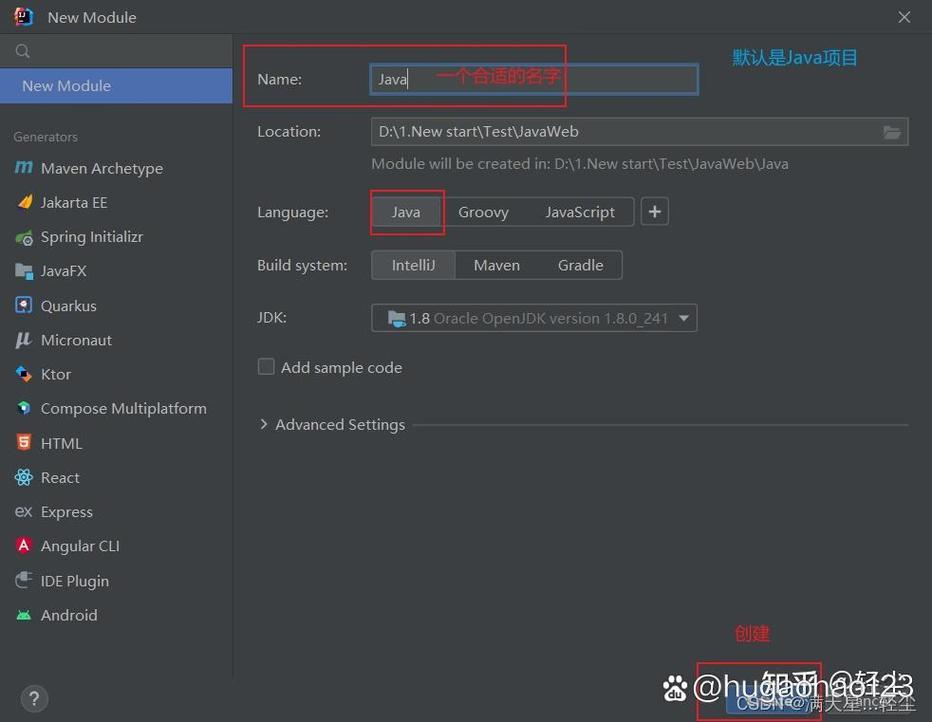
Table of Contents
- Prerequisites: What You Need First
- Setting Up Your Environment
- Creating Your First Dynamic Web Project
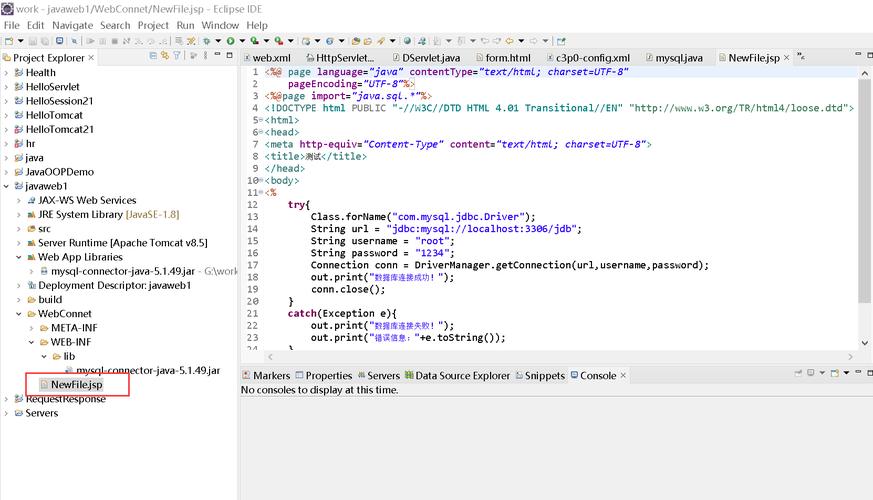
- Understanding the Project Structure
- Writing a Simple Servlet and JSP
- Running and Testing Your Application
- Recommended Eclipse Plugins for Web Development
- Best Practices
Prerequisites: What You Need First
Before you start, make sure you have the following installed:
- Java Development Kit (JDK): You need a JDK (version 8 or newer is recommended). Eclipse uses this to compile your Java code.
- Download from: Oracle JDK or OpenJDK.
- Eclipse IDE for Enterprise Java and Web Developers: This is the most important step. You cannot use the standard "Eclipse for Java Developers" edition for web development. You need the version that includes the tools for servers, servlets, and JSPs.
- Download from the Eclipse Downloads page.
- Look for the package named "Eclipse IDE for Enterprise Java and Web Developers". It will be much larger than the standard version because it includes plugins like WTP (Web Tools Platform).
Setting Up Your Environment
- Install the JDK: Run the installer for your JDK and note the installation path (e.g.,
C:\Program Files\Java\jdk-17). - Install Eclipse: Unzip the downloaded Eclipse archive to a desired location (e.g.,
C:\eclipse). There is no installer; it's a "portable" application. - Configure Eclipse to Use Your JDK (Optional but Recommended):
- Open Eclipse.
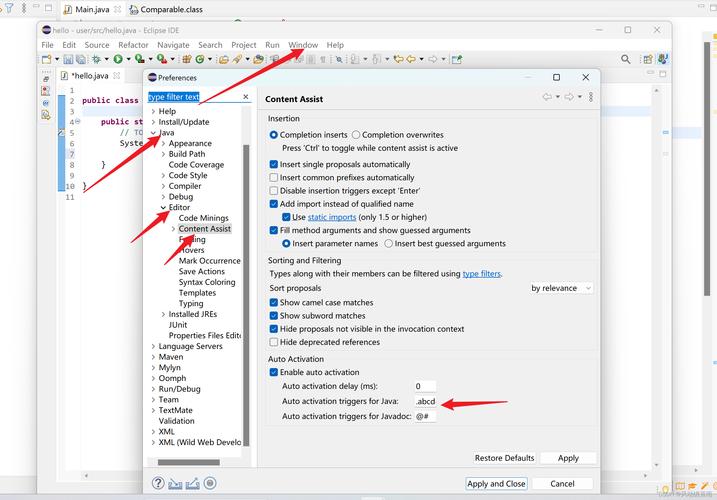
- Go to
Window->Preferences->Java->Installed JREs. - Click
Add..., selectStandard VM, and browse to your JDK installation directory. - Select your new JDK and click
Apply and Close.
Creating Your First Dynamic Web Project
This is where you set up the basic structure for your web application.
-
Create a New Project:
- Go to
File->New->Dynamic Web Project.
- Go to
-
Configure the Project:
 (图片来源网络,侵删)
- Project name: Give your project a name (e.g.,
MyWebApp). - Target runtime: This is crucial. It tells Eclipse which server you will use to run your application (like Apache Tomcat). If you don't see a server listed, you'll need to configure one first (see the note below).
- Configuration: Select a Java EE version (e.g.,
Java EE 8 Web). - Content directory: This is the root of your web application. The default
src/main/webappis a standard Maven-like structure and is a good choice.
- Project name: Give your project a name (e.g.,
-
Finish: Click
Finish. Eclipse will create your project with a standard web application structure.
Note: Configuring a Server (e.g., Apache Tomcat) If your Target runtime dropdown is empty, you need to add a server.
- Go to
Window->Preferences->Server->Runtime Environments.- Click
Add....- Select your server type (e.g.,
Apache->Apache Tomcat v9.0).- Click
Next, browse to your Tomcat installation directory, and clickFinish.- Now, when you create a new
Dynamic Web Project, your Tomcat server will appear in theTarget runtimedropdown.
Understanding the Project Structure
Once your project is created, you'll see several key folders. Understanding these is essential.
src/main/java: Your Java source code. This is where you'll put your servlets, utility classes, and other Java code.src/main/webapp: The root of your web application. This is what gets deployed to the server.index.htmlorindex.jsp: The default page that loads when you visit the app's root URL.WEB-INF: A special, secure directory.web.xml: The Deployment Descriptor. This is an XML file that configures your web application (e.g., maps URLs to servlets, defines filters). While modern apps often use annotations,web.xmlis still important for complex configurations.lib/: This folder contains all the third-party libraries (JAR files) your application depends on (e.g., database drivers, JSON libraries). You can add JARs here by right-clicking the folder and selectingBuild Path->Configure Build Path->Libraries->Add External JARs....
Writing a Simple Servlet and JSP
Let's create a classic "Hello World" example.
Step 1: Create a Servlet
- Right-click the
src/main/javafolder ->New->Servlet. - Package:
com.example.mywebapp(or any package you like). - Class name:
HelloServlet. - Click
Finish.
Eclipse will generate a basic servlet class. Let's modify it:
package com.example.mywebapp;
import java.io.IOException;
import javax.servlet.ServletException;
import javax.servlet.annotation.WebServlet;
import javax.servlet.http.HttpServlet;
import javax.servlet.http.HttpServletRequest;
import javax.servlet.http.HttpServletResponse;
/**
 * Servlet implementation class HelloServlet
 */
@WebServlet("/hello") // This annotation maps the servlet to the URL /hello
public class HelloServlet extends HttpServlet {
    private static final long serialVersionUID = 1L;
    /**
     * @see HttpServlet#doGet(HttpServletRequest request, HttpServletResponse response)
     */
    protected void doGet(HttpServletRequest request, HttpServletResponse response) throws ServletException, IOException {
        // Set a request attribute to pass data to the JSP
        request.setAttribute("message", "Hello from a Servlet!");
        // Forward the request to the JSP page
        request.getRequestDispatcher("/hello.jsp").forward(request, response);
    }
}
Step 2: Create a JSP to Display the Data
- Right-click the
src/main/webappfolder ->New->JSP File. - File name:
hello.jsp. - Click
Finish.
Now, edit hello.jsp to use the attribute set by the servlet:
<%@ page language="java" contentType="text/html; charset=UTF-8" pageEncoding="UTF-8"%>
<!DOCTYPE html>
<html>
<head>
<meta charset="UTF-8">Hello JSP</title>
</head>
<body>
    <h1>${message}</h1>
    <p>This page was generated by a JSP, receiving data from a Servlet.</p>
</body>
</html>
Running and Testing Your Application
-
Open the Server View:
- Go to
Window->Show View->Server. - In the Server view, you should see your configured Tomcat server.
- Go to
-
Add Your Project to the Server:
- Right-click your server ->
Add and Remove.... - Select your
MyWebAppproject from the "Available" box and move it to the "Configured" box. - Click
Finish.
- Right-click your server ->
-
Start the Server:
- Right-click your server in the Server view and select
Start.
The server will start, and you'll see its console output in the console tab at the bottom of Eclipse.
- Right-click your server in the Server view and select
-
Test Your Application:
- Once the server is running, double-click the
HelloServletin theProject Explorerto open it. - Right-click anywhere in the editor and select
Run As->Run on Server. - Choose your running Tomcat server and click
Finish. - Eclipse will open a web browser pointing to your application. Since you used the
@WebServlet("/hello")annotation, the URL will be something like:http://localhost:8080/MyWebApp/hello.
You should see the page with "Hello from a Servlet!".
- Once the server is running, double-click the
Recommended Eclipse Plugins for Web Development
The "Enterprise Java" version comes with great plugins, but you can add more:
- Spring Tools (Spring IDE): Essential if you are developing with the Spring Framework. It provides excellent support for Spring Boot, Spring MVC, and more.
- Maven Integration for Eclipse (or m2e): Already included in most Eclipse packages. It's crucial for managing project dependencies and building your project with Maven.
- Lombok: If you use Lombok to reduce boilerplate code (getters, setters, constructors), the L