
Of course! Creating a JAR (Java Archive) file is a fundamental skill in Java development. It bundles your compiled code, resources, and metadata into a single, distributable file.
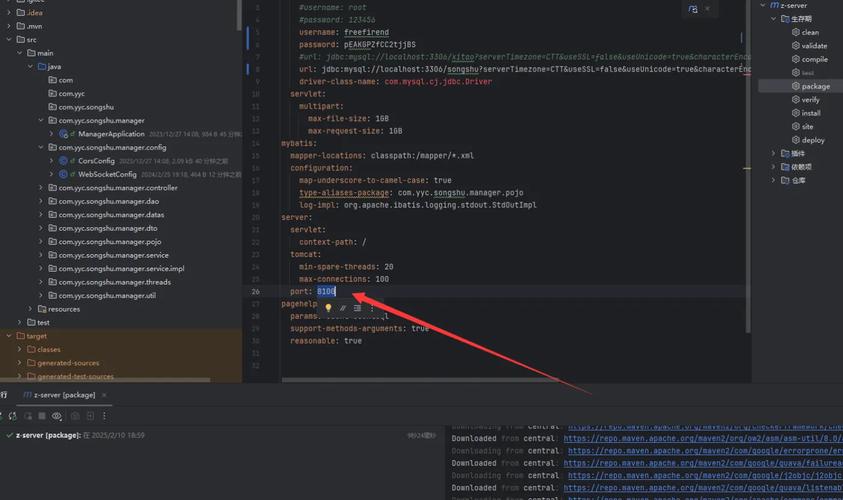
Here’s a comprehensive guide covering everything from the basics to advanced techniques, with clear examples.
What is a JAR File?
A JAR file is a ZIP archive with a .jar extension. It's used to:
- Distribute Java libraries (e.g.,
mysql-connector-java.jar). - Package standalone applications that can be run on any machine with a Java Runtime Environment (JRE).
- Bundle resources like images, configuration files, and text along with your code.
Part 1: The Basics - Creating a Runnable JAR with an IDE
This is the most common way for beginners and is very straightforward using an Integrated Development Environment (IDE) like IntelliJ IDEA or Eclipse.
Scenario: A Simple "Hello World" Project
Let's create a simple project with one class and a main method.
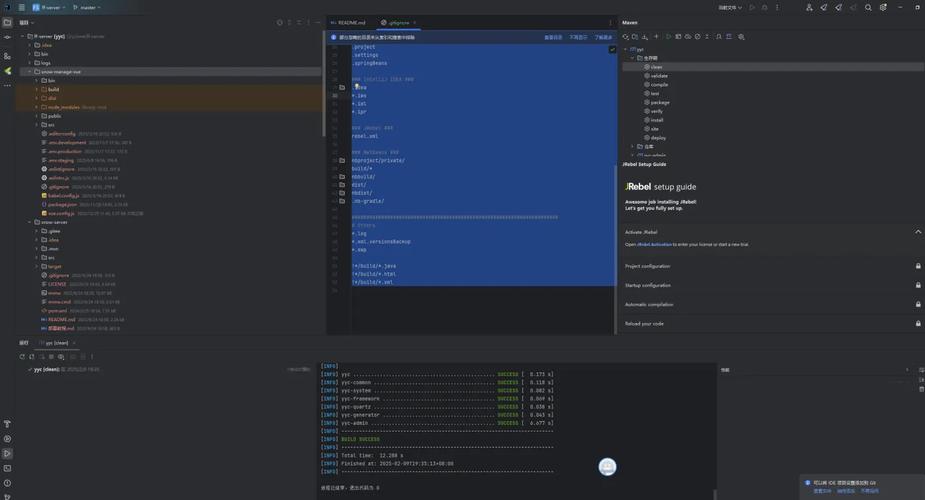
Project Structure:
my-project/
├── src/
│   └── com/
│       └── example/
│           └── Main.java
└── out/
    └── production/
        └── my-project/
            └── com/
                └── example/
                    └── Main.class
src/com/example/Main.java
package com.example;
public class Main {
    public static void main(String[] args) {
        System.out.println("Hello from my JAR!");
    }
}
How to Create the JAR in IntelliJ IDEA
- Go to
File->Project Structure.... - Select
Artifactsfrom the left menu. - Click the button in the toolbar and choose
JAR->From modules with dependencies.... - A dialog box will appear:
- Main Class: Click the dropdown and select
com.example.Main. - Directory for META-INF/MANIFEST.MF: This is crucial. It tells the JAR how to run. You can leave it as the default (it will create a
META-INF/MANIFEST.MFfile inside your JAR with theMain-Classattribute set). - Extract to the target JAR: Uncheck this if you want all libraries to be inside the main JAR. Check it if you want them extracted to a separate
libfolder (better for large libraries).
- Main Class: Click the dropdown and select
- Click OK.
- You'll see your new artifact in the list. Click OK to close the Project Structure window.
- Go to
Build->Build Artifacts.... - Select your artifact and click
Build.
Your JAR file will be created in a directory like out/artifacts/my_project/.
How to Create the JAR in Eclipse
- Right-click on your project in the Project Explorer.
- Select
Export.... - Expand the
Javafolder and chooseRunnable JAR file. Click Next. - Launch configuration: Select the configuration that runs your main class (it should be named after your project or main class).
- Export destination: Choose where to save your JAR file.
- Library handling: Choose how to include libraries.
- "Package required libraries into generated JAR": Puts everything in one file (simple, but can be large).
- "Extract required libraries into generated JAR": Extracts libraries to a
libfolder next to the JAR. The manifest file will be configured to look for them there.
- Click Finish.
How to Run the JAR File
Once you have your JAR file, open a terminal or command prompt, navigate to the directory where you saved it, and run:
java -jar my-project.jar
Expected Output:
Hello from my JAR!Part 2: The Manual Way - Using the Command Line
Understanding the command line is essential for build tools and scripting.
Step 1: Compile the Code
First, compile your .java files into .class files. Let's assume your source files are in the src directory.
# Create a directory for compiled classes
mkdir -p build/classes
# Compile all .java files in the src directory
# -d build/classes tells javac to put the output in the build/classes directory
javac -d build/classes src/com/example/Main.java
After this, you'll have build/classes/com/example/Main.class.
Step 2: Create the JAR
Now, use the jar command to package the compiled classes.
# Create a JAR file named my-app.jar
# -c: create a new archive
# -v: generate verbose output (optional)
# -f: specify the output file name
# -e: specify the entry point (main class) for a standalone application
jar -cvfe my-app.jar com.example.Main -C build/classes .
Let's break down that command:
jar: The command to create/manipulate JAR files.-c: Create a new archive.-v: Verbose mode (prints out what files are being added).-f: File. Specifies the name of the JAR file to create (my-app.jar).-e: Entry point. Specifies the main class (com.example.Main). This automatically adds theMain-Classattribute to theMETA-INF/MANIFEST.MFfile.-C build/classes .: This is a clever trick.-C build/classeschanges the current directory tobuild/classesfor the command that follows.- (a single dot) means "add all files and directories from the current directory" (which is now
build/classes) into the root of the JAR.
You can now run it the same way:
java -jar my-app.jar
Part 3: Advanced - Multi-Project JARs with Build Tools (Maven/Gradle)
For any non-trivial project, you should use a build tool. They automate compilation, dependency management, testing, and packaging.
Example with Maven
Project Structure:
my-maven-project/
├── pom.xml
└── src/
    ├── main/
    │   ├── java/
    │   │   └── com/
    │   │       └── example/
    │   │           └── Main.java
    │   └── resources/
    │       └── config.properties
    └── test/
        └── java/
            └── com/
                └── example/
                    └── MainTest.java
pom.xml (The most important file)
<project xmlns="http://maven.apache.org/POM/4.0.0"
         xmlns:xsi="http://www.w3.org/2001/XMLSchema-instance"
         xsi:schemaLocation="http://maven.apache.org/POM/4.0.0 http://maven.apache.org/xsd/maven-4.0.0.xsd">
    <modelVersion>4.0.0</modelVersion>
    <groupId>com.example</groupId>
    <artifactId>my-maven-project</artifactId>
    <version>1.0-SNAPSHOT</version>
    <properties>
        <maven.compiler.source>11</maven.compiler.source>
        <maven.compiler.target>11</maven.compiler.target>
    </properties>
    <build>
        <plugins>
            <!-- This plugin creates the executable JAR -->
            <plugin>
                <groupId>org.apache.maven.plugins</groupId>
                <artifactId>maven-jar-plugin</artifactId>
                <version>3.2.0</version>
                <configuration>
                    <archive>
                        <manifest>
                            <addClasspath>true</addClasspath>
                            <mainClass>com.example.Main</mainClass>
                        </manifest>
                    </archive>
                </configuration>
            </plugin>
            <!-- This plugin bundles dependencies into the JAR -->
            <plugin>
                <groupId>org.apache.maven.plugins</groupId>
                <artifactId>maven-assembly-plugin</artifactId>
                <version>3.3.0</version>
                <configuration>
                    <archive>
                        <manifest>
                            <mainClass>com.example.Main</mainClass>
                        </manifest>
                    </archive>
                    <descriptorRefs>
                        <descriptorRef>jar-with-dependencies</descriptorRef>
                    </descriptorRefs>
                </configuration>
                <executions>
                    <execution>
                        <id>make-assembly</id>
                        <phase>package</phase>
                        <goals>
                            <goal>single</goal>
                        </goals>
                    </execution>
                </executions>
            </plugin>
        </plugins>
    </build>
</project>
To build and package:
Open a terminal in the root directory (my-maven-project/) and run:
mvn clean package
This will create two JARs in the target/ directory:
my-maven-project-1.0-SNAPSHOT.jar: The standard JAR (without dependencies).my-maven-project-1.0-SNAPSHOT-jar-with-dependencies.jar: The "fat" or "uber" JAR containing all dependencies, perfect for running withjava -jar.
Example with Gradle
build.gradle
plugins {
    id 'java'
    id 'application' // This plugin simplifies creating an executable JAR
}
group = 'com.example'
version = '1.0-SNAPSHOT'
repositories {
    mavenCentral()
}
dependencies {
    // Example: Add a logging library
    implementation 'org.slf4j:slf4j-api:1.7.36'
    runtimeOnly 'ch.qos.logback:logback-classic:1.2.11'
}
// This tells the 'application' plugin which class is the main class
application {
    mainClass = 'com.example.Main'
}
// To create a "fat" JAR that includes all dependencies
task fatJar(type: Jar) {
    archiveClassifier.set('all') // Name will be my-maven-project-1.0-SNAPSHOT-all.jar
    from sourceSets.main.output
    from {
        configurations.runtimeClasspath.collect { it.isDirectory() ? it : zipTree(it) }
    }
    with jar
}
To build and package: Open a terminal in the root directory and run:
# Creates the standard executable JAR
gradle build
# OR to create the "fat" JAR defined in the task
gradle fatJar
The standard executable JAR will be in build/libs/. The "fat" JAR will be build/libs/my-maven-project-1.0-SNAPSHOT-all.jar.
Common Problems and Solutions
Problem: NoClassDefFoundError
- Cause: You are trying to run a JAR that depends on other libraries (JARs), but those libraries are not on the classpath.
- Solution 1 (for IDE-created JARs): When you export the JAR, make sure you choose the option to extract libraries to a
libfolder. Your final distribution should be a folder containing your main JAR and alibfolder with all the dependencies. - Solution 2 (for manual JARs): You must explicitly provide the dependencies on the command line.
# -cp (or -classpath) specifies the classpath
java -cp "my-app.jar:mysql-connector-java.jar" com.example.Main
This is why build tools like Maven and Gradle are so useful—they handle this for you.
Problem: Could not find or load main class
- Cause 1: The
Main-Classattribute in theMETA-INF/MANIFEST.MFfile is missing or incorrect. This often happens if you manually create a JAR without using the-eflag or an IDE's export wizard. - Solution: Recreate the JAR using a reliable method (IDE, Maven/Gradle, or the
jar -ecommand). - Cause 2: You are running the command from the wrong directory or specifying the class path incorrectly.
- Solution: Make sure you are in the directory containing the JAR file when you run
java -jar my-app.jar.
Summary: Which Method to Use?
| Method | Best For | Pros | Cons |
|---|---|---|---|
| IDE (IntelliJ/Eclipse) | Beginners, small projects, quick prototyping. | Very easy, visual, handles manifest creation automatically. | Can be less flexible for complex build processes. |
Command Line (javac/jar) |
Learning, simple scripts, CI/CD pipelines without build tools. | No IDE dependency, gives you full control. | Tedious, manual dependency management, error-prone. |
| Maven/Gradle | All real-world projects, especially medium to large ones. | Automated builds, dependency management, standardization, powerful plugins. | Steeper learning curve for the build file (pom.xml/build.gradle). |
For any serious project, start with Maven or Gradle. They will save you countless hours and headaches as your project grows.


