Of course! Let's break down Java, the JDK, and Eclipse. They are three fundamental concepts for anyone starting with Java development.
Think of it like this:
- Java is the language (like English or Spanish).
- JDK (Java Development Kit) is the toolkit that lets you write programs in that language (a pen, paper, dictionary, and grammar book).
- Eclipse is the workspace or desk where you use the toolkit to write and organize your programs (a big, organized desk with a computer).
Java
What is it? Java is a high-level, class-based, object-oriented programming language. It's designed to have as few implementation dependencies as possible.
Key Characteristics:
- "Write Once, Run Anywhere" (WORA): This is Java's most famous feature. You write your code and compile it into an intermediate format called "bytecode." This bytecode can then run on any device that has a Java Virtual Machine (JVM), whether it's a Windows PC, a Mac, or a Linux server.
- Object-Oriented (OOP): Java is built around the concept of "objects," which can contain data (fields/attributes) and code (methods). This helps in organizing complex programs into manageable, reusable components.
- Platform Independent: The JVM acts as a bridge between your Java code and the underlying operating system.
- Rich Standard Library: Java comes with a huge set of pre-built classes and methods (called the Java API) for handling everything from networking and data structures to graphical user interfaces (GUIs).
- Strongly Typed & Secure: You must declare the type of every variable, which helps catch errors early. The JVM also includes security features like a "sandbox" to run untrusted code safely.
Use Cases:
- Enterprise-level backend applications (using frameworks like Spring)
- Android App Development (though Kotlin is now the official language, Java is still widely used)
- Big Data technologies (Hadoop, Spark, Kafka)
- Scientific applications
- Web applications
JDK (Java Development Kit)
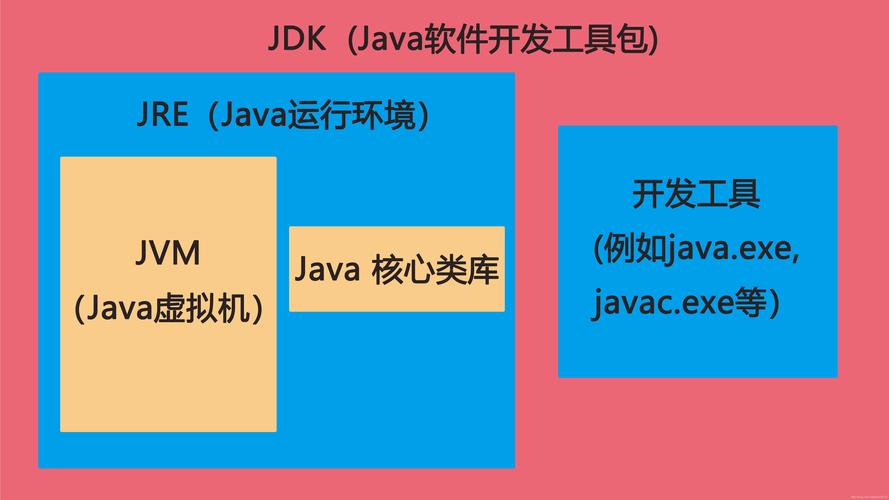
What is it? The JDK is the core software package you need to develop Java applications. It contains everything required to compile, debug, and run Java code. If you want to create Java programs, you need the JDK.
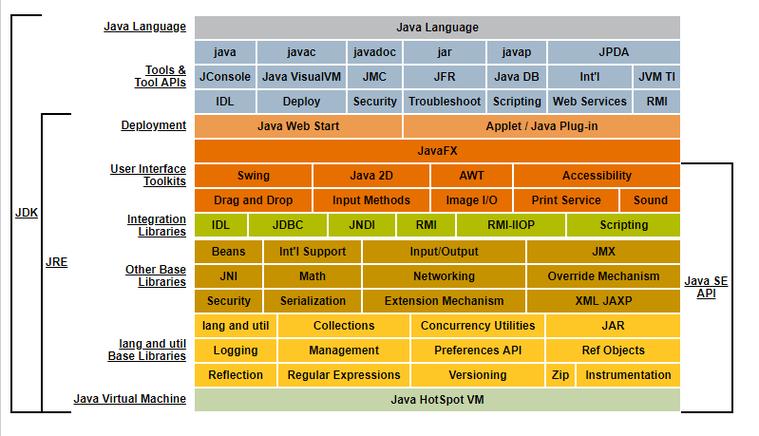
What's Inside the JDK? The JDK is not just one thing; it's a suite of tools and components:
-
Java Compiler (
javac): This is the most important tool. It takes your human-readable.javasource code files and compiles them into Java bytecode, which are.classfiles.- Analogy:
javacis your spell checker and grammar checker for the Java language.
- Analogy:
-
Java Virtual Machine (JVM): This is the runtime engine that executes the compiled bytecode. It's responsible for interpreting the bytecode and translating it into instructions that the specific operating system can understand. This is what makes Java "platform independent."
 (图片来源网络,侵删)
- Analogy: The JVM is the interpreter who reads your translated book (bytecode) and tells the local audience (the OS) what it means.
-
Java Runtime Environment (JRE): The JDK includes the JRE. The JRE contains the JVM and the core class libraries (
.jarfiles) necessary to run a Java application, but it does not include the compiler (javac). You only need the JRE on a machine that will just run Java apps, not develop them. -
Core Class Libraries: A vast collection of pre-written code that provides standard functionality (e.g., handling strings, creating lists, connecting to a network). You import these libraries into your own code to save time.
-
Development Tools: The JDK also includes other useful command-line tools for debugging, profiling, and documenting your code, such as
jdb(debugger) andjavadoc(documentation generator).
How to Get the JDK?
- Official Source: The most common and recommended version is from Oracle (though there are "builds" from other companies like Amazon Corretto and Eclipse Temurin, which are also excellent and free).
- Installation: You download the installer for your operating system (Windows, macOS, Linux) and run it. It will set up the
JAVA_HOMEenvironment variable, which tells your system where the JDK is installed.
Eclipse
What is it? Eclipse is a free, open-source Integrated Development Environment (IDE). An IDE is a software application that provides comprehensive facilities to computer programmers for software development. It's essentially a powerful text editor on steroids.
Why Use an IDE like Eclipse? Writing code in a simple text editor (like Notepad) is possible, but it's inefficient. An IDE provides:
- Code Editor with Syntax Highlighting: Different parts of your code (keywords, variables, strings) are color-coded, making it easier to read.
- IntelliSense / Code Completion: As you type, Eclipse suggests methods, variable names, and classes, speeding up development and reducing typos.
- Built-in Compiler: It automatically runs
javacin the background as you type, highlighting errors in real-time before you even try to run the program. - Debugger: This is a crucial tool. It allows you to pause your program's execution, inspect the values of variables, step through your code line-by-line, and find bugs (logic errors) much faster.
- Project Management: Eclipse helps you organize your code into projects, packages (folders), and files in a structured way.
- Plugin Ecosystem: Eclipse is highly extensible. You can install plugins to add support for other programming languages (C++, Python), databases, version control systems like Git, and frameworks like Spring or JavaFX.
How to Get Eclipse?
- Download: Go to the Eclipse Downloads page.
- Choose the Right Package: For Java development, you should download "Eclipse IDE for Java Developers". Don't worry if you see other versions; this one has everything you need.
- Install: Eclipse is a "portable" application. You don't run an installer; you just unzip the downloaded file and run the
eclipse.exe(Windows) orEclipse.app(macOS) file.
How They All Work Together: A Typical Workflow
Here is the step-by-step process of creating a Java program using these three components:
-
Install the JDK: First, you must install the JDK on your computer. This provides the necessary tools (
javac, JVM) to create and run Java code. -
Install Eclipse: Next, download and unzip the Eclipse IDE for Java Developers.
-
Create a Project in Eclipse:
- Launch Eclipse.
- Go to
File > New > Java Project. - Give your project a name and click
Finish. Eclipse will automatically set up the project structure and link it to the JDK you have installed.
-
Write the Code:
- In the "Project Explorer" on the left, right-click your project, go to
New > Class. - Give your class a name (e.g.,
HelloWorld) and check the box to create thepublic static void main(String[] args)method. This is the entry point for your Java program. - Inside the
mainmethod, type your code. Eclipse will help you with suggestions and error checking.
// HelloWorld.java public class HelloWorld { public static void main(String[] args) { // System.out.println is a command to print text to the console. System.out.println("Hello, World!"); } } - In the "Project Explorer" on the left, right-click your project, go to
-
Run the Program:
- Right-click anywhere inside your
HelloWorld.javafile. - Select
Run As > Java Application. - Eclipse will use the JDK's
javacto compile your code into bytecode and then use the JDK's JVM to run it. - The output "Hello, World!" will appear in the "Console" view at the bottom of the screen.
- Right-click anywhere inside your
Summary Table
| Component | Role | Analogy | Do I need it? |
|---|---|---|---|
| Java | The programming language. | The English language. | Yes, to understand what you're writing. |
| JDK | The toolkit for developing Java apps. Includes the compiler (javac) and JVM. | A pen, paper, and dictionary. | Yes, if you are a developer. |
| JRE | The environment for running Java apps. Includes the JVM and libraries. | A person who can read and understand English. | Only if you just want to run a Java program, not write one. |
| Eclipse | An IDE (a powerful workspace) for writing, organizing, and managing Java code. | A big, organized desk with a computer and tools. | No, but it makes development much easier. Other popular IDEs include IntelliJ IDEA and VS Code. |