Of course! A "JavaScript error" is a very common issue for anyone working on websites. Let's break down what it is, what it looks like, and how to fix it, step-by-step.
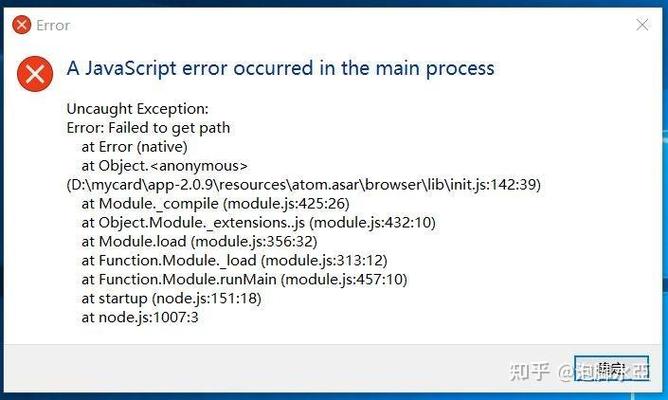
What is a JavaScript Error?
In simple terms, a JavaScript error is a mistake in the code that makes the browser unable to run it correctly. Think of it like a spelling or grammar error in a sentence—the computer (the browser) gets confused and stops, or misinterprets, your instructions.
When an error occurs, the browser's JavaScript engine stops executing the script at the point of the error. Any code that comes after the error in that script will not run.
What Does an Error Look Like?
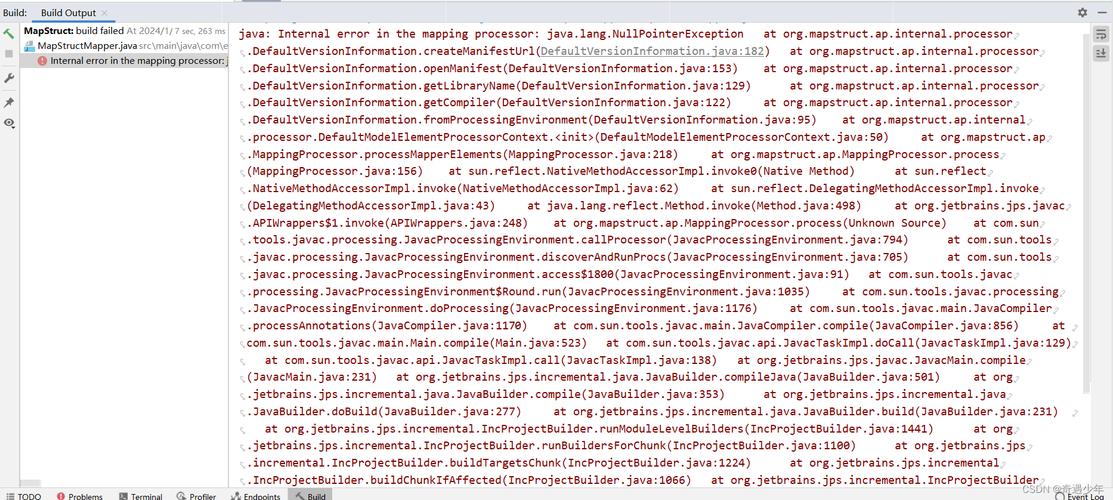
You won't see a pop-up box saying "Error!" on most public websites (it's bad for user experience). Instead, you'll see it in the browser's Developer Tools.
Common Symptoms on a Website:
- A button that doesn't do anything when you click it.
- A form that won't submit.
- A part of the page that is missing, blank, or looks broken.
- A whole page that fails to load properly.
How to See the Actual Error Message:
-
Open Developer Tools:
- Chrome / Edge / Firefox: Press F12 on your keyboard.
- Or, right-click anywhere on a webpage and select "Inspect" or "Inspect Element".
-
Go to the "Console" Tab:
- In the Developer Tools window that appears, click on the "Console" tab.
-
Look for Red Text:
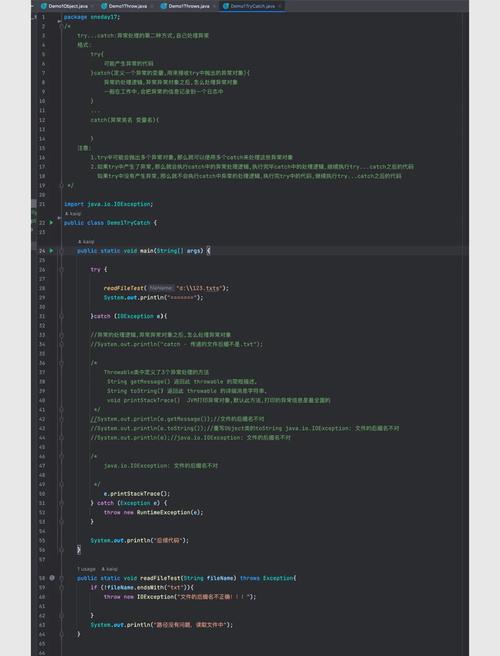 (图片来源网络,侵删)
- Errors are almost always highlighted in red.
- They will have a type (like
TypeError,SyntaxError,ReferenceError), a descriptive message, and often a link to the specific line of code in your "Sources" or "Debugger" tab.
Common Types of JavaScript Errors and How to Fix Them
Here are the most frequent errors you'll encounter, with examples and solutions.
A. SyntaxError
This is the most basic error. It means you've written code that isn't valid JavaScript, like a missing bracket, parenthesis, or semicolon.
- What it looks like:
Uncaught SyntaxError: Unexpected identifier - Example Code:
let myVar = "hello" // Missing semicolon
console.log(myVar
// Missing closing parenthesis
- How to Fix It:
Carefully check the line number mentioned in the console. Look for unmatched brackets , ,
[], or missing semicolons . Use an IDE like VS Code, which often highlights these errors for you with red squiggly lines.
B. ReferenceError
This happens when you try to use a variable or function that has not been declared.
- What it looks like:
Uncaught ReferenceError: myVariable is not defined - Example Code:
// myVariable was never created
console.log(myVariable);
- How to Fix It:
- Typo: Did you misspell the variable name?
console.log(myVraiable); - Scope: Are you trying to access a variable inside a function that was created outside, or vice-versa?
- Forgot to
var/let/const: Did you forget to declare the variable first?// Correct way let myVariable = 10; console.log(myVariable);
- Typo: Did you misspell the variable name?
C. TypeError
This occurs when you try to perform an operation on a value of the wrong type. For example, trying to run a .map() function on a string instead of an array.
- What it looks like:
Uncaught TypeError: myArray.map is not a function - Example Code:
let myString = "hello world";
let result = myString.map(item => item); // .map() doesn't exist for strings
- How to Fix It:
Check the type of your variable before using a function on it. You can use
typeofto debug.console.log(typeof myString); // "string" // You probably meant to split it into an array first let myArray = myString.split(" "); let result = myArray.map(item => item);
D. TypeError: Cannot read properties of undefined (or null)
This is extremely common. It means you are trying to access a property or method on a variable that is undefined or null.
- What it looks like:
Uncaught TypeError: Cannot read properties of undefined (reading 'length') - Example Code:
let data; // data is undefined
let count = data.items.length; // Error: Can't get .length from undefined
- How to Fix It:
- Add a Check: Before accessing the property, make sure the variable exists.
if (data && data.items) { let count = data.items.length; } - Optional Chaining (Modern JS): This is the cleanest solution. It stops the chain if any part is
nullorundefined.// If data or data.items is undefined, this whole expression becomes undefined instead of an error. let count = data?.items?.length;
- Add a Check: Before accessing the property, make sure the variable exists.
A Step-by-Step Debugging Workflow
When you see an error, follow these steps to fix it efficiently.
- Open the Developer Console: Press F12 and go to the Console tab.
- Identify the Error: Look at the red text. Note the error type, the message, and the file name and line number.
- Go to the Source: In the Developer Tools, click the "Sources" (or "Debugger") tab. Open the file that's mentioned in the error.
- Find the Problematic Line: The console will have a link that takes you directly to the exact line of code causing the error.
- Inspect Variables: Use the Debugger to pause the code's execution and inspect the values of your variables.
- Set a Breakpoint: Click on the line number in the "Sources" tab to add a red dot. This pauses the code when it reaches that line.
- Refresh the Page: The code will pause at your breakpoint.
- Check Variables: Look in the "Scope" or "Watch" panels on the side to see the current values of all your variables. This is the most powerful way to find out why a variable is
undefinedor has the wrong value.
- Formulate a Hypothesis and Fix: Based on what you see, make an educated guess about the problem (e.g., "The
userobject is empty because the API call didn't finish") and change the code. - Refresh and Test: Save your file, refresh the webpage, and see if the error is gone.
How to Prevent JavaScript Errors
- Use a Linter: Tools like ESLint will automatically scan your code as you write it and point out potential errors and bad practices before you even run the code. (VS Code has great ESLint integration).
- Write Modular Code: Break your code into small, reusable functions. This makes it easier to test and debug isolated pieces.
- Validate User Input: Don't trust any data coming from a user. Check that it's in the correct format before trying to use it in your calculations.
- Use
try...catchBlocks: For operations that you know might fail (like fetching data from an API), you can "catch" the error gracefully instead of crashing the whole page.try { // Risky code that might fail let response = fetch('https://api.example.com/data'); let data = response.json(); // ... do something with data } catch (error) { // If an error occurs, run this code instead console.error("Failed to fetch data:", error); // Show a friendly message to the user document.getElementById('status-message').innerText = "Could not load data. Please try again later."; }