Of course! Here’s a comprehensive guide on how to install the paho-mqtt library for Python, which is the standard for MQTT communication.
The Short Answer (TL;DR)
Open your terminal or command prompt and run this command:
pip install paho-mqtt
Detailed Guide
Here’s a more detailed breakdown, including troubleshooting and common use cases.
Prerequisites
- Python: You must have Python installed on your system. You can check by running
python --versionorpython3 --versionin your terminal. - pip:
pipis Python's package installer. It usually comes pre-installed with Python. You can check its version withpip --version.
Installation Steps
The paho-mqtt library is available on the Python Package Index (PyPI), so pip is the easiest way to install it.
Step 1: Open Your Terminal
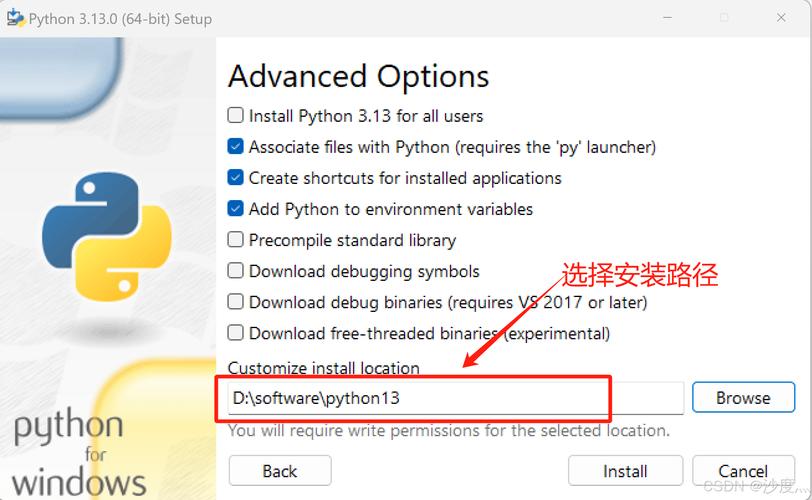
- Windows: Open Command Prompt or PowerShell.
- macOS / Linux: Open the Terminal app.
Step 2: Run the Install Command Type the following command and press Enter:
pip install paho-mqtt
If you have multiple Python versions (e.g., Python 2 and Python 3), you might need to be more specific. It's a best practice to use pip3 to ensure you're installing the package for your Python 3 installation:
pip3 install paho-mqtt
Step 3: Verify the Installation You can verify that the library was installed correctly by running a simple Python command:
python -c "import paho.mqtt.client as mqtt; print(paho.__version__)"
If you see a version number printed (e.g., 6.1), the installation was successful.

Common Use Cases
Once installed, you can use paho-mqtt to connect to an MQTT broker. Here are the two most fundamental examples.
Example 1: A Simple Publisher (Sender)
This script connects to a public test broker and publishes a message to the topic test/topic.
import paho.mqtt.client as mqtt
import time
# The callback for when the client receives a CONNACK response from the server.
def on_connect(client, userdata, flags, rc):
    if rc == 0:
        print("Connected successfully to broker!")
    else:
        print(f"Failed to connect, return code {rc}\n")
# The callback for when a PUBLISH message is received from the server.
def on_message(client, userdata, msg):
    print(f"Received `{msg.payload.decode()}` from `{msg.topic}` topic")
# Create a new client instance
client = mqtt.Client("publisher_client")
# Assign the callbacks
client.on_connect = on_connect
# client.on_message = on_message # Uncomment if you want this client to also subscribe
# --- Configuration ---
broker_address = "broker.hivemq.com" # Public test broker
broker_port = 1883
# Connect to the broker
print(f"Connecting to {broker_address}:{broker_port}")
client.connect(broker_address, broker_port)
# Start the network loop in a separate thread to handle incoming messages and reconnections
client.loop_start()
# Publish a message
topic = "test/topic"
message = "Hello from Paho MQTT Publisher!"
print(f"Publishing to topic '{topic}': {message}")
client.publish(topic, message)
# Wait for a moment to ensure the message is sent
time.sleep(2)
# Stop the network loop
client.loop_stop()
print("Disconnected from broker.")
Example 2: A Simple Subscriber (Receiver)
This script connects to the same broker and subscribes to test/topic. It will print any messages published to that topic.
import paho.mqtt.client as mqtt
# The callback for when the client receives a CONNACK response from the server.
def on_connect(client, userdata, flags, rc):
    if rc == 0:
        print("Connected successfully to broker!")
        # Subscribe to the topic
        topic = "test/topic"
        print(f"Subscribing to topic: {topic}")
        client.subscribe(topic)
    else:
        print(f"Failed to connect, return code {rc}\n")
# The callback for when a PUBLISH message is received from the server.
def on_message(client, userdata, msg):
    print(f"Received `{msg.payload.decode()}` from `{msg.topic}` topic")
# Create a new client instance
client = mqtt.Client("subscriber_client")
# Assign the callbacks
client.on_connect = on_connect
client.on_message = on_message
# --- Configuration ---
broker_address = "broker.hivemq.com" # Public test broker
broker_port = 1883
# Connect to the broker
print(f"Connecting to {broker_address}:{broker_port}")
client.connect(broker_address, broker_port)
# Start the network loop to block and wait for messages
# This will keep the script running forever
print("Waiting for messages...")
client.loop_forever()
To test this, run the Publisher script in one terminal and the Subscriber script in another. You should see the subscriber receive the message.
Troubleshooting
Problem: pip is not recognized as an internal or external command...
This usually means pip is not in your system's PATH.
- Solution: Try using
python -m pip install paho-mqtt. This explicitly tells your system to use thepipmodule associated with your Python installation.
Problem: ModuleNotFoundError: No module named 'paho'
This means the installation failed or the Python interpreter you're using is different from the one where you installed the package.
- Solution 1: Re-run the installation command:
python -m pip install paho-mqtt. - Solution 2: Make sure you are running your Python script from the same environment where you installed the package. If you are using a virtual environment, activate it first before running the script.
Problem: PermissionError: [Errno 13] Permission denied
This error occurs on Linux/macOS when you try to install a package globally without sudo.
- Solution (Recommended): Use a virtual environment to avoid system-wide permission issues.
- Create a virtual environment:
python -m venv my_mqtt_project - Activate it:
- macOS/Linux:
source my_mqtt_project/bin/activate - Windows:
my_mqtt_project\Scripts\activate
- macOS/Linux:
- Now install the package:
pip install paho-mqtt - Run your script from within this activated environment.
- Create a virtual environment:
Problem: Connection refused or Timeout errors
This usually means you cannot reach the MQTT broker.
- Check:
- Is the broker address correct?
- Is the broker port correct (default is
1883for unencrypted,8883for encrypted)? - Is the broker online and accessible from your network? The public broker
broker.hivemq.comis usually a good one for testing.