Of course! Setting up Python to connect to MySQL on Windows 7 is a classic and very common task. The process involves two main parts:
- Installing MySQL Server: The database itself.
- Installing Python and the MySQL Connector: The tools to make Python talk to the database.
Here is a complete, step-by-step guide.
Prerequisites
- A working installation of Python for Windows 7 (32-bit or 64-bit).
- Administrative privileges on your Windows 7 machine.
Part 1: Install MySQL Server
First, you need the actual database server. MySQL is now owned by Oracle, and the official installer is called MySQL Installer for Windows.
Step 1: Download MySQL Installer
- Go to the official MySQL download page: https://dev.mysql.com/downloads/installer/
- You will see two options. For Windows 7, you need the 32-bit version. Look for the file named something like:
mysql-installer-web-community-8.0.xx.xx.msi
- The "web" version is smaller and will download the required components during installation, which is usually fine.
Step 2: Run the Installer
- Run the downloaded
.msifile. - You will be greeted by the MySQL Setup Wizard. Click Next.
- Choose the setup type. "Full" is the easiest and recommended option as it installs everything you need (Server, Workbench, etc.). Click Next.
- Configure the Server: This is a critical step.
- Type and Networking: Choose "Standalone MySQL Server" and ensure the "TCP/IP" box is checked. This allows connections from other machines on your network (including your own Python script).
- Accounts and Roles: Click on "root@localhost" under "Accounts".
- Set a Root Password. Remember this password! You will need it for your Python script.
- Optionally, you can add a new user here if you prefer not to use the root account for your applications.
- Windows Service: Ensure the "Configure MySQL Server as a Windows Service" box is checked. This makes the database start automatically when you boot your computer.
- Click "Execute" to apply the configuration. The installer will now set up the server. This may take a few minutes.
Step 3: Verify Installation
- After the configuration is complete, the installer might suggest launching MySQL Workbench. You can do this to test your connection.
- Open MySQL Workbench (it was installed with the server).
- Click the "+" icon next to "MySQL Connections" to set up a new connection.
- Enter a connection name (e.g., "Local MySQL") and set the hostname to
localhost. Enter the root password you set earlier. - Click "Test Connection". If it says "Successfully made the connection to the server!", you're all set. Click OK and then Connect.
You now have a running MySQL server!
Part 2: Install Python and the MySQL Connector
Now, let's get Python ready to talk to this database.
Step 1: Install Python (If you haven't already)
If you don't have Python, download it from https://www.python.org/downloads/windows/. For Windows 7, you need a version older than 3.9 (e.g., Python 3.8.10). Important: During installation, make sure to check the box that says "Add Python to PATH". This makes it easy to run Python from the command line.
Step 2: Install the MySQL Connector for Python
This is the "bridge" between your Python code and the MySQL server. The official library is called mysql-connector-python.
- Open the Command Prompt or PowerShell.
- Use
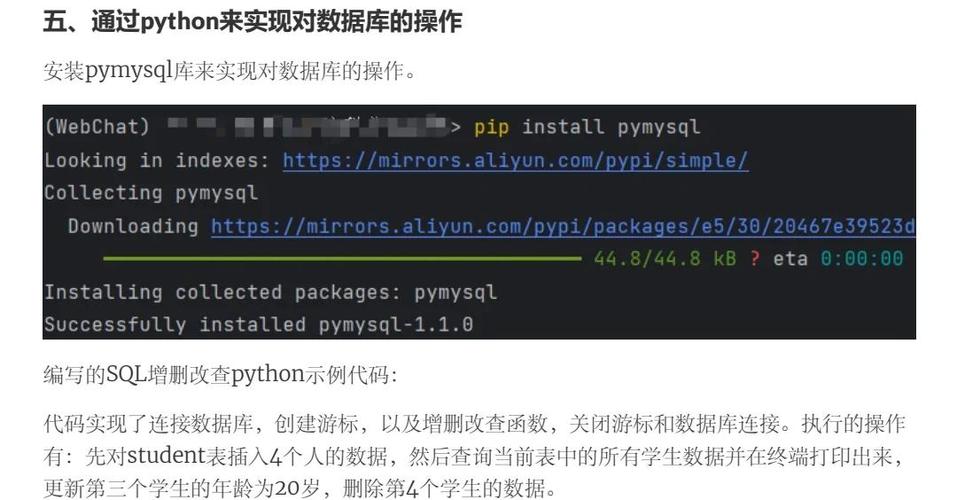
pip(Python's package installer) to install the library. Run the following command:pip install mysql-connector-python
Note: If you have both Python 2 and 3, you might need
pip3 install mysql-connector-python.
The library will be downloaded and installed automatically.
Part 3: Create a Database and Test the Connection
Let's put it all together with a simple Python script.
Step 1: Create a Test Database
- Open MySQL Workbench again.
- Connect to your server using the root account.
- In the SQL Editor tab, run the following SQL command to create a new database for our test:
CREATE DATABASE my_test_db;
- You can verify it was created by running
SHOW DATABASES;.
Step 2: Write the Python Script
-
Open a simple text editor (like Notepad) or a code editor (like VS Code).
-
Copy and paste the following code into the editor.
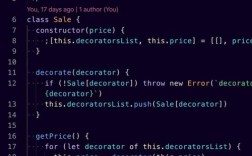
import mysql.connector from mysql.connector import Error def create_server_connection(host_name, user_name, user_password): """Establishes a connection to the MySQL server.""" connection = None try: connection = mysql.connector.connect( host=host_name, user=user_name, passwd=user_password ) print("MySQL connection is successful") except Error as e: print(f"The error '{e}' occurred") return connection def create_database(connection, query): """Creates a new database if it doesn't exist.""" cursor = connection.cursor() try: cursor.execute(query) print("Database created successfully") except Error as e: print(f"The error '{e}' occurred") def execute_query(connection, query): """Executes a single query (CREATE, INSERT, UPDATE, DELETE).""" cursor = connection.cursor() try: cursor.execute(query) connection.commit() print("Query executed successfully") except Error as e: print(f"The error '{e}' occurred") def read_query(connection, query): """Executes a SELECT query and returns the results.""" cursor = connection.cursor() result = None try: cursor.execute(query) result = cursor.fetchall() return result except Error as e: print(f"The error '{e}' occurred") # --- Main Execution --- if __name__ == "__main__": # --- Connection Details --- # IMPORTANT: Replace with your actual MySQL root password db_password = "YOUR_ROOT_PASSWORD" db_host = "localhost" db_user = "root" # 1. Connect to the MySQL Server connection = create_server_connection(db_host, db_user, db_password) if connection is not None: # 2. Create the database (if it doesn't exist) create_database_query = "CREATE DATABASE IF NOT EXISTS my_test_db" create_database(connection, create_database_query) # 3. Switch to the new database connection.database = "my_test_db" # 4. Create a table create_table_query = """ CREATE TABLE IF NOT EXISTS employees ( id INT AUTO_INCREMENT PRIMARY KEY, name VARCHAR(255) NOT NULL, department VARCHAR(255) ) """ execute_query(connection, create_table_query) # 5. Insert data into the table insert_employee_1 = "INSERT INTO employees (name, department) VALUES ('Alice', 'Engineering')" insert_employee_2 = "INSERT INTO employees (name, department) VALUES ('Bob', 'Marketing')" execute_query(connection, insert_employee_1) execute_query(connection, insert_employee_2) # 6. Query the data (SELECT) select_employees = "SELECT * FROM employees" employees = read_query(connection, select_employees) print("\n--- Employee Data ---") for employee in employees: print(employee) # 7. Close the connection if connection.is_connected(): connection.close() print("\nMySQL connection is closed") -
Crucially, replace
"YOUR_ROOT_PASSWORD"with the actual password you set for the MySQLrootuser in Part 1. -
Save the file as
test_mysql.pyon your Desktop or another easy-to-find location.
Step 3: Run the Script
- Open Command Prompt or PowerShell.
- Navigate to the directory where you saved the file. For example, if it's on your Desktop:
cd C:\Users\YourUsername\Desktop
- Run the script using Python:
python test_mysql.py
Expected Output
If everything is configured correctly, you will see the following output in your command prompt:
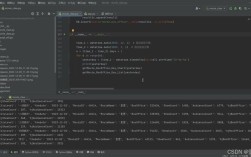
MySQL connection is successful
Database created successfully
Query executed successfully
Query executed successfully
Query executed successfully
--- Employee Data ---
(1, 'Alice', 'Engineering')
(2, 'Bob', 'Marketing')
MySQL connection is closed
Congratulations! You have successfully installed MySQL on Windows 7 and connected to it using Python. You can now build applications that store and retrieve data from your database.