Of course! "Modify data" in Python is a broad topic. The best way to do it depends entirely on what kind of data you're working with.
Let's break it down by the most common data structures in Python: Lists, Dictionaries, and Pandas DataFrames.
Modifying Data in a List
Lists are ordered, mutable collections. You can change, add, or remove elements.
a) Modifying an Element by Index
You can directly access an element using its index and assign a new value. Remember, indexing starts at 0.
# A list of numbers
numbers = [10, 20, 30, 40, 50]
# Change the third element (index 2) from 30 to 35
numbers[2] = 35
print(f"Modified list: {numbers}")
# Output: Modified list: [10, 20, 35, 40, 50]
b) Modifying a Slice (Multiple Elements)
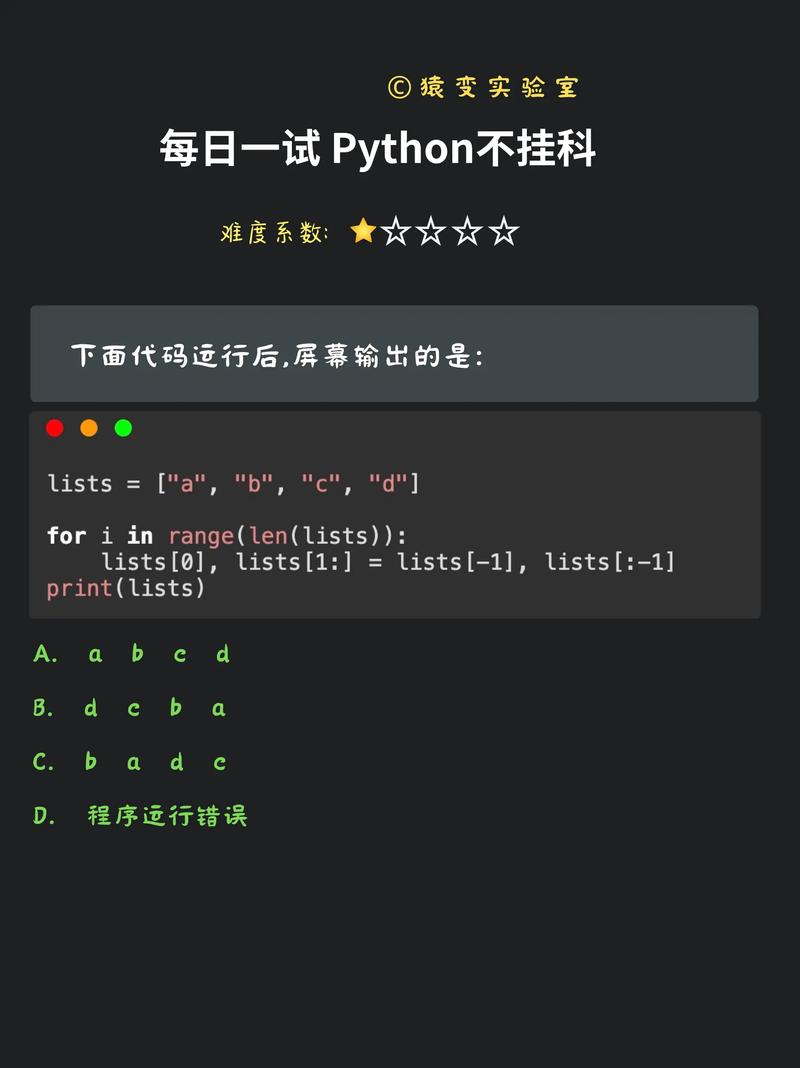
You can change a range of elements at once using slice notation list[start:stop].
# A list of fruits
fruits = ['apple', 'banana', 'cherry', 'date', 'elderberry']
# Replace the second and third elements with 'blueberry' and 'blackberry'
fruits[1:3] = ['blueberry', 'blackberry']
print(f"Modified list: {fruits}")
# Output: Modified list: ['apple', 'blueberry', 'blackberry', 'date', 'elderberry']
c) Adding Elements
append(): Adds an element to the end of the list.insert(index, element): Inserts an element at a specific position.
# Using append()
fruits.append('fig')
print(f"After append: {fruits}")
# Output: After append: ['apple', 'blueberry', 'blackberry', 'date', 'elderberry', 'fig']
# Using insert()
fruits.insert(0, 'apricot') # Insert at the beginning
print(f"After insert: {fruits}")
# Output: After insert: ['apricot', 'apple', 'blueberry', 'blackberry', 'date', 'elderberry', 'fig']
d) Removing Elements
pop(index): Removes and returns the element at a specific index. If no index is given, it removes the last element.remove(element): Removes the first occurrence of a specific value.clear(): Removes all elements from the list.
# Using pop()
removed_fruit = fruits.pop(1) # Removes 'apple'
print(f"Popped element: {removed_fruit}")
print(f"After pop: {fruits}")
# Output: Popped element: apple
# After pop: ['apricot', 'blueberry', 'blackberry', 'date', 'elderberry', 'fig']
# Using remove()
fruits.remove('date')
print(f"After remove: {fruits}")
# Output: After remove: ['apricot', 'blueberry', 'blackberry', 'elderberry', 'fig']
Modifying Data in a Dictionary
Dictionaries are key-value pairs. They are mutable, but you modify them using keys, not indices.
a) Modifying a Value by Key
If the key already exists, this will update its value. If the key doesn't exist, this will add a new key-value pair.
# A dictionary representing a person
person = {
    'name': 'Alice',
    'age': 30,
    'city': 'New York'
}
# Modify an existing value
person['age'] = 31
# Add a new key-value pair
person['country'] = 'USA'
print(f"Modified dictionary: {person}")
# Output: Modified dictionary: {'name': 'Alice', 'age': 31, 'city': 'New York', 'country': 'USA'}
b) Using .update() Method
This method updates the dictionary with elements from another dictionary or an iterable of key/value pairs. It's very useful for bulk updates.
# Original dictionary
person = {'name': 'Alice', 'age': 30}
# A dictionary with updates
updates = {'age': 31, 'city': 'New York', 'job': 'Engineer'}
# Update the original dictionary
person.update(updates)
print(f"After update: {person}")
# Output: After update: {'name': 'Alice', 'age': 31, 'city': 'New York', 'job': 'Engineer'}
c) Removing Key-Value Pairs
del dict[key]: Deletes a specific key-value pair. Raises aKeyErrorif the key doesn't exist.dict.pop(key, default): Removes a key and returns its value. If the key doesn't exist, it returns thedefaultvalue (or raises aKeyErrorif no default is provided).dict.clear(): Removes all items from the dictionary.
# Using del
del person['job']
print(f"After del: {person}")
# Output: After del: {'name': 'Alice', 'age': 31, 'city': 'New York'}
# Using pop
city = person.pop('city', 'Unknown') # 'Unknown' is the default value
print(f"Popped city: {city}")
print(f"After pop: {person}")
# Output: Popped city: New York
# After pop: {'name': 'Alice', 'age': 31}
Modifying Data in a Pandas DataFrame (Crucial for Data Analysis)
This is the most common scenario for data modification in data science and analytics. Pandas provides powerful tools for this.
First, make sure you have pandas installed: pip install pandas
import pandas as pd
# Create a sample DataFrame
data = {
    'Name': ['Alice', 'Bob', 'Charlie'],
    'Age': [25, 30, 35],
    'City': ['New York', 'Los Angeles', 'Chicago']
}
df = pd.DataFrame(data)
print("Original DataFrame:")
print(df)
a) Modifying a Column
You can treat a column like a dictionary and assign a new list, a single value, or a mathematical operation.
# Assign a new list to a column
df['Country'] = ['USA', 'USA', 'USA']
# Modify an existing column with a mathematical operation
df['Age'] = df['Age'] + 1 # Add 1 to every age
# Assign a single value to an entire column (broadcasting)
df['Status'] = 'Active'
print("\nModified DataFrame (Column operations):")
print(df)
b) Modifying a Cell (Specific Value)
Use .at for label-based indexing (fast) or .iat for integer-position-based indexing.
# Change Charlie's age to 36
df.at[2, 'Age'] = 36
# Change the value in the first row, 'City' column
df.iat[0, 2] = 'San Francisco'
print("\nModified DataFrame (Cell operations):")
print(df)
c) Conditional Modification (.loc)
This is one of the most powerful features. You can modify values that meet a certain condition.
# Give a bonus of 5 years to anyone older than 28
df.loc[df['Age'] > 28, 'Age'] = df['Age'] + 5
print("\nModified DataFrame (Conditional):")
print(df)
d) Using .apply() for Custom Functions
For complex modifications, you can apply a function to each element in a column or the entire DataFrame.
# Create a new column with a greeting based on the name
df['Greeting'] = df['Name'].apply(lambda name: f"Hello, {name}!")
print("\nModified DataFrame (with .apply):")
print(df)
Summary: Which Method to Use?
| Data Type | Goal | Method | Example |
|---|---|---|---|
| List | Change one element | my_list[index] = new_value |
my_list[0] = 'new' |
| Change multiple elements | my_list[start:end] = new_values |
my_list[1:3] = ['a', 'b'] |
|
| Add to end | my_list.append(item) |
my_list.append('end') |
|
| Add to specific spot | my_list.insert(index, item) |
my_list.insert(0, 'start') |
|
| Dictionary | Change or add a value | my_dict[key] = new_value |
my_dict['name'] = 'Alex' |
| Bulk update | my_dict.update(other_dict) |
my_dict.update({'age': 40}) |
|
| Pandas DataFrame | Modify a whole column | df['col'] = new_values |
df['Age'] = df['Age'] * 2 |
| Modify a single cell | df.at[row, 'col'] = value |
df.at[0, 'City'] = 'NYC' |
|
| Modify based on condition | df.loc[condition, 'col'] = value |
df.loc[df['Age'] > 50, 'Status'] = 'Senior' |