Of course! Here is a comprehensive guide to creating word clouds in Python, from the basics to more advanced customizations.
We'll use the most popular library for this task: wordcloud.
What is a Word Cloud?
A word cloud (or tag cloud) is a visual representation of text data. The size of each word indicates its frequency or importance in the source text. It's a great way to quickly get a sense of the main topics in a body of text.
Step 1: Installation
First, you need to install the wordcloud library. It's highly recommended to also have matplotlib for easy plotting and Pillow (PIL) for image processing.
pip install wordcloud matplotlib Pillow
Step 2: A Simple, Basic Word Cloud
Let's start with the simplest possible example. We'll create a word cloud from a simple string of text.

# Import necessary libraries
from wordcloud import WordCloud
import matplotlib.pyplot as plt
# Your text
text = """
Python is an amazing programming language. It is versatile, easy to learn, and powerful.
Python is used for web development, data science, machine learning, automation, and more.
Learning Python opens up many opportunities. The Python community is large and supportive.
"""
# Create a WordCloud object
# We specify the width, height, and background color.
wordcloud = WordCloud(width=800, height=400, background_color='white').generate(text)
# Display the generated image using matplotlib
plt.figure(figsize=(10, 5)) # Set the figure size
plt.imshow(wordcloud, interpolation='bilinear') # 'bilinear' makes the image smoother
plt.axis("off") # Turn off the axis
plt.show()
What this code does:
WordCloud(...): Creates an instance of the word cloud generator..generate(text): This is the key method that takes your text string and processes it to count word frequencies and generate the image.plt.imshow(...): Displays the image generated by thewordcloudobject.plt.axis("off"): Hides the x and y axes, which are not needed for a word cloud.
Step 3: Customizing Your Word Cloud
The WordCloud class has many parameters to customize the output. Here are the most common ones:
from wordcloud import WordCloud
import matplotlib.pyplot as plt
text = """
Python is an amazing programming language. It is versatile, easy to learn, and powerful.
Python is used for web development, data science, machine learning, automation, and more.
Learning Python opens up many opportunities. The Python community is large and supportive.
"""
# More customizable WordCloud object
wordcloud = WordCloud(
    width=800,
    height=400,
    background_color='white', # Background color
    colormap='viridis',       # Color scheme (matplotlib colormap)
    max_words=100,            # Maximum number of words to display
    contour_width=3,          # Width of the contour around the cloud
    contour_color='steelblue' # Color of the contour
).generate(text)
# Display the image
plt.figure(figsize=(10, 5))
plt.imshow(wordcloud, interpolation='bilinear')
plt.axis("off")
plt.show()
Key Customization Parameters:
width,height: Dimensions of the output image.background_color: The color of the background (e.g.,'white','black').colormap: A string name of a Matplotlib colormap to use for the words (e.g.,'viridis','plasma','magma','cividis').max_words: An integer to limit the number of words in the cloud.min_font_size,max_font_size: The range of font sizes.contour_width,contour_color: Adds a colored outline to the shape of the cloud.relative_scaling: How much the size difference between words is emphasized. A value of0means no difference,1means maximum difference.stopwords: A set of words to ignore.
Step 4: Using Stopwords
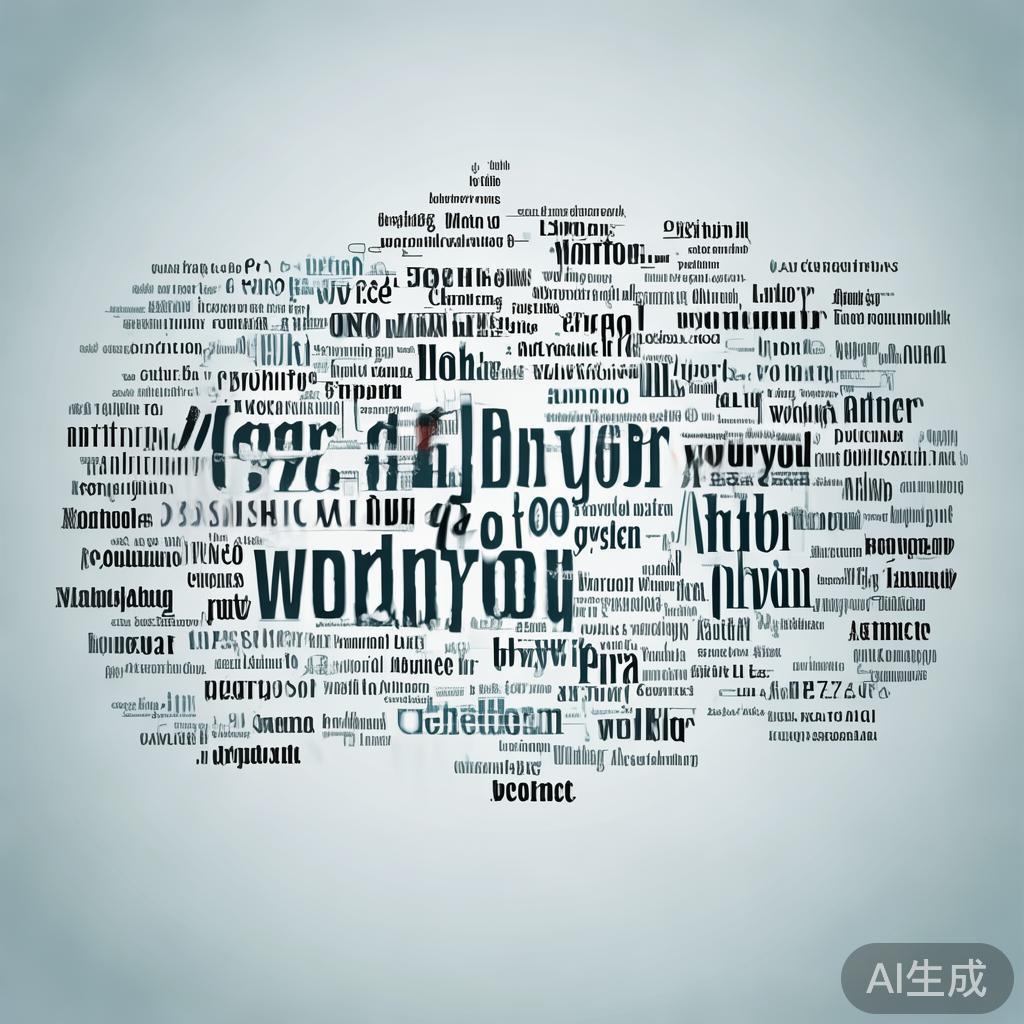
Stopwords are common words (like "the", "is", "a", "in") that you usually want to exclude because they don't carry much meaning. The wordcloud library has a built-in list, but you can also add your own.
from wordcloud import WordCloud, STOPWORDS
import matplotlib.pyplot as plt
text = """
Python is an amazing programming language. It is versatile, easy to learn, and powerful.
Python is used for web development, data science, machine learning, automation, and more.
Learning Python opens up many opportunities. The Python community is large and supportive.
"""
# Add custom stopwords to the default set
custom_stopwords = set(STOPWORDS)
custom_stopwords.add("python") # Let's ignore "python" as well
custom_stopwords.add("language")
wordcloud = WordCloud(
    width=800,
    height=400,
    background_color='white',
    stopwords=custom_stopwords, # Use our custom stopwords
    colormap='plasma'
).generate(text)
plt.figure(figsize=(10, 5))
plt.imshow(wordcloud, interpolation='bilinear')
plt.axis("off")"Word Cloud with Custom Stopwords", fontsize=16)
plt.show()
Step 5: Creating a Word Cloud from a File
In real-world scenarios, your text will likely be in a file (.txt, .csv, etc.).
Create a sample text file (my_text.txt):
Data science is a multidisciplinary field that uses scientific methods, processes, algorithms and systems to extract knowledge and insights from noisy, structured and unstructured data.
Data science is related to data mining, machine learning and big data. Data science is a "concept to unify statistics, data analysis, machine learning and their related methods" in order to "understand and analyze actual phenomena" with data.
It employs techniques and theories drawn from many fields within the context of mathematics, statistics, computer science, and information science.
Python code to read the file and generate the cloud:
from wordcloud import WordCloud
import matplotlib.pyplot as plt
# Read the entire text file
with open('my_text.txt', 'r') as file:
    text = file.read()
wordcloud = WordCloud(width=800, height=400, background_color='white').generate(text)
plt.figure(figsize=(10, 5))
plt.imshow(wordcloud, interpolation='bilinear')
plt.axis("off")
plt.show()
Step 6: Using a Custom Mask Shape
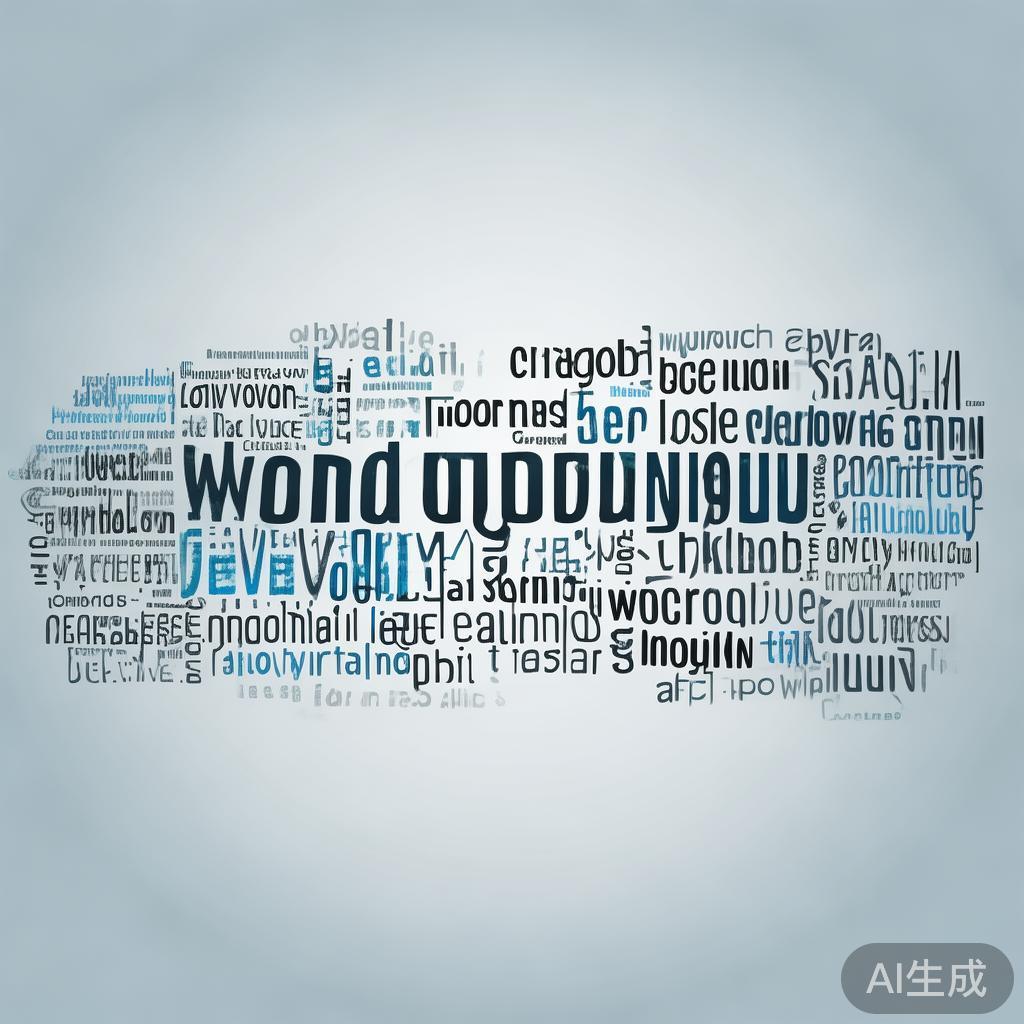
One of the coolest features is to shape your word cloud into a custom image. You'll need an image file (.png works best) with a transparent background.
Get a mask image. For this example, let's assume you have an image named circle_mask.png that is a simple circle on a transparent background.
Python code:
from wordcloud import WordCloud
import matplotlib.pyplot as plt
from PIL import Image # Pillow library
import numpy as np
# Read the text from a file
with open('my_text.txt', 'r') as file:
    text = file.read()
# Load the mask image
mask = np.array(Image.open("circle_mask.png"))
# Create the word cloud with the mask
wordcloud = WordCloud(
    width=800,
    height=800,
    background_color='white',
    mask=mask, # Apply the mask
    contour_width=1,
    contour_color='steelblue'
).generate(text)
# Display the image
plt.figure(figsize=(10, 10))
plt.imshow(wordcloud, interpolation='bilinear')
plt.axis("off")
plt.show()
Result: The words will be generated only in the white areas of the mask, forming a circle.
Step 7: Advanced - Creating a Word Cloud from a Pandas DataFrame
This is a very common use case. You might have a column of text in a DataFrame.
import pandas as pd
from wordcloud import WordCloud
import matplotlib.pyplot as plt
# Sample DataFrame
data = {'review_text': [
    'This product is amazing! I love it so much.',
    'Not bad, could be better. It is okay.',
    'Amazing product, highly recommend it to everyone.',
    'The product is amazing and the service is great too.',
    'I am not happy with this purchase. It is a bad product.'
]}
df = pd.DataFrame(data)
# Combine all text from the 'review_text' column into a single string
text = " ".join(review for review in df.review_text)
wordcloud = WordCloud(width=800, height=400, background_color='white').generate(text)
plt.figure(figsize=(10, 5))
plt.imshow(wordcloud, interpolation='bilinear')
plt.axis("off")"Word Cloud from DataFrame")
plt.show()
Summary of Key Libraries and Functions
| Library | Function | Purpose |
|---|---|---|
wordcloud |
WordCloud(...) |
The main class to configure the word cloud's appearance. |
| `.generate(text |