Of course! The ExcelWriter object in Python is a powerful feature provided by the Pandas library. It's the standard and most efficient way to write multiple DataFrames to different sheets in a single Excel file, or to apply more advanced formatting and styling.
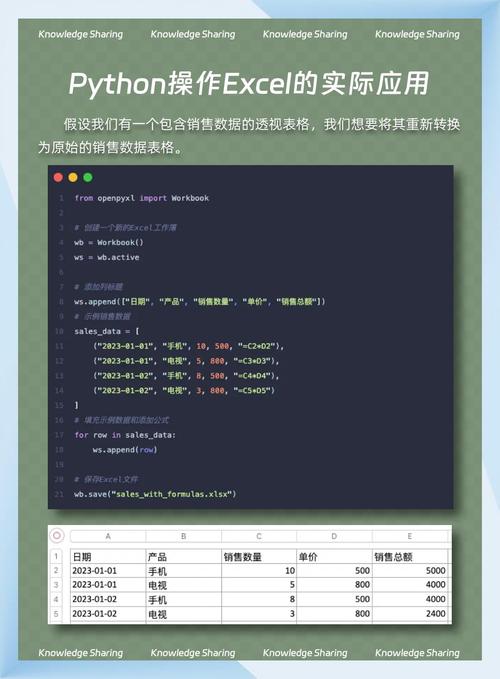
Let's break it down from the basics to more advanced use cases.
What is ExcelWriter?
At its core, ExcelWriter is a context manager (used with the with statement) that provides a handle to an Excel file. Its main advantages are:
- Multiple DataFrames to One File: You can write several different DataFrames to different sheets within the same Excel file.
- Efficiency: It keeps the Excel file open in the background while you add data and formatting, which is much faster than opening, writing, and closing the file for each DataFrame.
- Advanced Formatting: It allows you to use the
openpyxlorxlsxwriterengines to apply cell formatting (like fonts, colors, borders, number formats) before saving the file.
The Basic Workflow
The standard pattern for using ExcelWriter looks like this:
import pandas as pd
# 1. Create some sample DataFrames
df1 = pd.DataFrame({'A': [1, 2, 3], 'B': [4, 5, 6]})
df2 = pd.DataFrame({'C': ['apple', 'banana', 'cherry'], 'D': [10, 20, 30]})
df3 = pd.DataFrame({'E': [True, False, True]})
# 2. Use the 'with' statement to create an ExcelWriter object
#    The 'engine' is often optional, but good to specify.
with pd.ExcelWriter('my_multiple_sheets.xlsx', engine='xlsxwriter') as writer:
    # 3. Write each DataFrame to a specific sheet
    df1.to_excel(writer, sheet_name='Sheet1', index=False)
    df2.to_excel(writer, sheet_name='Sheet2', index=False)
    df3.to_excel(writer, sheet_name='Sheet3', index=False)
print("Excel file 'my_multiple_sheets.xlsx' created successfully!")
Explanation:
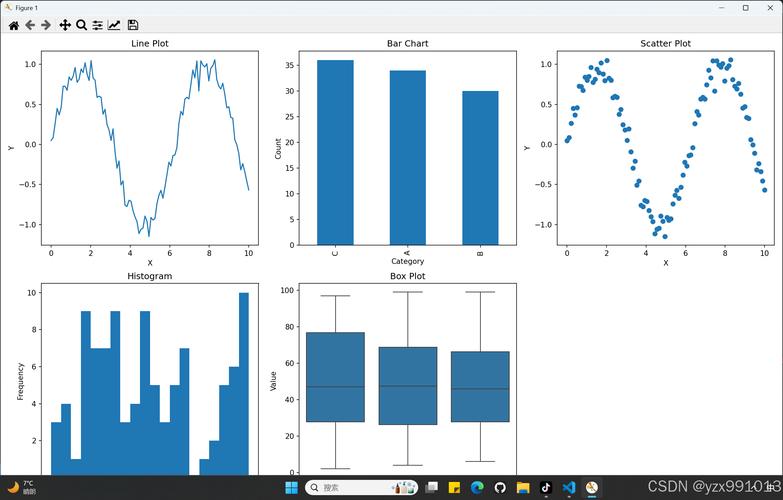
import pandas as pd: Imports the Pandas library.pd.ExcelWriter('filename.xlsx', ...): This creates the object that will manage the Excel file.'filename.xlsx': The name of the output file.engine='xlsxwriter': Specifies the underlying engine to use.xlsxwriteris great for writing and formatting, whileopenpyxlis excellent for reading and writing existing files with complex formatting. Pandas will try to infer the best engine if you don't specify it.
with ... as writer:: This is the context manager. It ensures that the Excel file is properly closed and saved after all operations are completed, even if an error occurs.df.to_excel(writer, ...): This is the method that actually writes a DataFrame to the Excel file. The key is that it takes thewriterobject as its first argument, telling it where to write the data.
Advanced Example: Adding Formatting
This is where ExcelWriter truly shines. Let's write a DataFrame and then format it using the xlsxwriter engine.
import pandas as pd
# Sample DataFrame
sales_data = pd.DataFrame({
    'Product': ['Laptop', 'Mouse', 'Keyboard', 'Monitor'],
    'Q1 Sales': [15000, 5000, 7000, 12000],
    'Q2 Sales': [18000, 5500, 7500, 13000],
    'Total': [33000, 10500, 14500, 25000]
})
# Create an ExcelWriter object with the xlsxwriter engine
with pd.ExcelWriter('formatted_sales_report.xlsx', engine='xlsxwriter') as writer:
    # Write the DataFrame to a sheet named 'Sales Report'
    sales_data.to_excel(writer, sheet_name='Sales Report', index=False)
    # Get the xlsxwriter workbook and worksheet objects
    workbook = writer.book
    worksheet = writer.sheets['Sales Report']
    # --- Add Formatting ---
    # 1. Create a format for the header (bold, text wrap)
    header_format = workbook.add_format({
        'bold': True,
        'text_wrap': True,
        'valign': 'top',
        'fg_color': '#D7E4BC',  # Light green
        'border': 1
    })
    # 2. Create a format for the 'Total' column (currency format)
    currency_format = workbook.add_format({'num_format': '$#,##0'})
    # 3. Apply the header format to the first row
    for col_num, value in enumerate(sales_data.columns.values):
        worksheet.write(0, col_num, value, header_format)
    # 4. Apply the currency format to the 'Total' column
    #    We find the index of the 'Total' column
    total_col_idx = sales_data.columns.get_loc('Total')
    worksheet.set_column(total_col_idx, total_col_idx, None, currency_format)
    # 5. Set the width of the 'Product' column
    worksheet.set_column('A:A', 15)
    # 6. Add a chart (optional, but very powerful)
    chart = workbook.add_chart({'type': 'column'})
    # Configure the chart data
    # [sheet_name, first_row, first_col, last_row, last_col]
    chart.add_series({
        'name':       '=\'Sales Report\'!$B$1',
        'categories': '=\'Sales Report\'!$A$2:$A$5',
        'values':     '=\'Sales Report\'!$B$2:$B$5',
    })
    chart.add_series({
        'name':       '=\'Sales Report\'!$C$1',
        'categories': '=\'Sales Report\'!$A$2:$A$5',
        'values':     '=\'Sales Report\'!$C$2:$C$5',
    })
    # Insert the chart into the worksheet
    worksheet.insert_chart('E2', chart)
print("Formatted Excel file 'formatted_sales_report.xlsx' created!")
This advanced example demonstrates how you can go far beyond just writing data. You can control fonts, colors, borders, number formats, column widths, and even embed charts.
Key Parameters and Options
Choosing an Engine
| Engine | Best For | Pros | Cons |
|---|---|---|---|
xlsxwriter |
Writing & Formatting | Excellent performance, supports all Excel features (charts, images, complex formatting). | Cannot read existing Excel files. |
openpyxl |
Reading/Writing & Formatting | Can read and modify existing .xlsx files. Good for preserving existing formatting. |
Slower than xlsxwriter for large amounts of data. |
odswriter |
ODS Files | Creates OpenDocument Spreadsheet (.ods) files, compatible with LibreOffice. |
Not for .xlsx files. |
You can specify the engine directly in ExcelWriter:
# For xlsxwriter (default for .xlsx)
with pd.ExcelWriter('file.xlsx', engine='xlsxwriter') as writer:
    # ...
# For openpyxl
with pd.ExcelWriter('file.xlsx', engine='openpyxl') as writer:
    # ...
to_excel Parameters
When writing a DataFrame, you can use these common parameters:
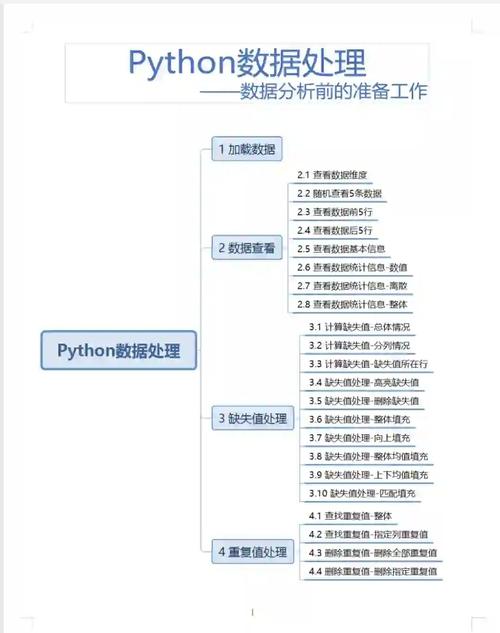
sheet_name: The name of the sheet to write to (e.g.,'Report').index:True(default) to write the DataFrame index,Falseto omit it.columns: A list of column names to write. Useful for selecting a subset of columns.startrow/startcol: Integers specifying the top-left cell where writing should begin (e.g.,startrow=5to start writing at row 6).
mode Parameter
The mode parameter in ExcelWriter controls how the file is handled.
mode='w'(default): Write mode. Creates a new file. If a file with the same name exists, it will be overwritten.mode='a': Append mode. This is used to add sheets to an existing Excel file. Crucially, this only works with theopenpyxlengine.
Example of Appending a Sheet:
# First, create a base file
df1 = pd.DataFrame({'Data': [1, 2, 3]})
df1.to_excel('append_example.xlsx', sheet_name='Initial Data')
# Now, add a new sheet to the existing file
df2 = pd.DataFrame({'More Data': ['a', 'b', 'c']})
# Use mode='a' and engine='openpyxl'
with pd.ExcelWriter('append_example.xlsx', mode='a', engine='openpyxl') as writer:
    df2.to_excel(writer, sheet_name='New Added Data', index=False)
print("Sheet appended to 'append_example.xlsx'")
Common Pitfalls and Best Practices
-
Forgetting
with: If you don't use thewithstatement, you must manually callwriter.save()to close and save the file. Forgetting this is a common source of empty or corrupted Excel files.# Without 'with', you must save manually writer = pd.ExcelWriter('manual_save.xlsx') df1.to_excel(writer, sheet_name='Sheet1') writer.save() # CRUCIAL -
Engine Mismatch: If you try to use
mode='a'(append) withengine='xlsxwriter', it will fail. Append mode requiresopenpyxl. -
Overwriting:
mode='w'will overwrite your file without warning. Be careful with your filenames. -
Large Files: For extremely large DataFrames, writing to Excel can be slow. If you just need to store and retrieve data, consider more efficient formats like Parquet or Feather.