Of course! Here is a comprehensive guide to the Java Runtime Environment (JRE) on macOS, covering what it is, how to check if you have it, how to install it, and the differences between the main versions.
What is the Java Runtime Environment (JRE)?
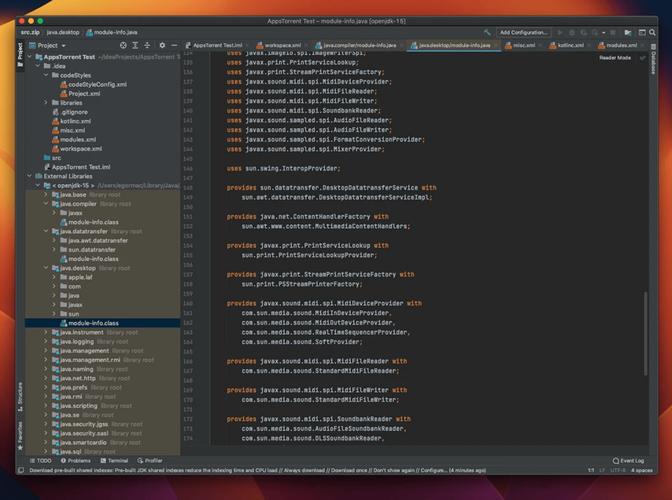
The JRE is a software package that provides the minimum requirements for executing a Java application. It includes:
- The Java Virtual Machine (JVM): The engine that interprets compiled Java bytecode (
.classfiles) and runs it on your computer. - Core Class Libraries: A set of pre-written code (like
String,ArrayList, etc.) that developers can use to build applications. - Other Supporting Files: Necessary for the JVM to function.
In simple terms: If you just want to run a Java application (like a Minecraft server, a financial trading platform, or a web app), you only need the JRE. If you want to write Java applications, you need the JDK (Java Development Kit), which includes the JRE plus development tools like the compiler (javac) and debugger.
How to Check if Java is Installed on Your Mac
You can check for Java in two main ways: via the command line (Terminal) and by checking your system settings.
A. Using the Command Line (Terminal)
This is the most reliable method to check the version.
- Open the Terminal app. You can find it in
Applications/Utilities/or by searching with Spotlight (Cmd+Space). - Type the following command and press Enter:
java -version
What to expect:
-
If Java is installed: You will see output similar to this, showing the version and vendor.
openjdk version "17.0.8" 2025-07-18 OpenJDK Runtime Environment Temurin-17.0.8+7 (build 17.0.8+7) OpenJDK 64-Bit Server VM Temurin-17.0.8+7 (build 17.0.8+7, mixed mode, sharing)- This shows Java 17 is installed. The version number is the most important part.
-
If Java is NOT installed: You will see an error message.
zsh: command not found: javaor
 (图片来源网络,侵删)
-bash: java: command not found
B. Using System Information
- Click the Apple menu in the top-left corner of your screen.
- Select About This Mac.
- Click the System Report... button.
- In the new window, scroll down the sidebar on the left and click Software.
- Look for a line called Java Version. If it's blank, Java is not installed. If it has a version number, it is installed.
How to Install Java on a Mac
There are two main ways to get Java on macOS: using Homebrew (the recommended method for developers) or by downloading the installer directly from Oracle or Eclipse Temurin.
Method 1: Using Homebrew (Recommended for Developers)
Homebrew is a popular package manager for macOS that makes installing software incredibly simple.
-
Install Homebrew (if you don't have it): Open Terminal and paste this command:
/bin/bash -c "$(curl -fsSL https://raw.githubusercontent.com/Homebrew/install/HEAD/install.sh)"
Follow the on-screen instructions.
-
Install Java: The easiest way with Homebrew is to install a specific version. For modern applications, Java 17 (LTS) is the recommended Long-Term Support version.
-
To install the latest LTS version (e.g., Java 17):
brew install openjdk@17
-
To install the latest non-LTS version (e.g., Java 21):
brew install openjdk@21
-
-
Set up the
JAVA_HOMEEnvironment Variable: After installing, Homebrew will give you instructions on how to set up the environment variable. You need to do this so your system knows where to find Java. Run these commands in your Terminal:echo 'export PATH="/opt/homebrew/opt/openjdk@17/bin:$PATH"' >> ~/.zshrc echo 'export JAVA_HOME="/opt/homebrew/opt/openjdk@17"' >> ~/.zshrc
Note: If you are using an older version of macOS, your shell might be Bash (
~/.bash_profile) instead of Zsh (~/.zshrc). -
Reload your shell:
source ~/.zshrc
-
Verify the installation:
java -version
You should now see the version you installed.
Method 2: Using an Official Installer
This method is simpler for users who just want to run an application and don't need to manage multiple versions.
-
Choose a Distribution:
- Eclipse Temurin (Recommended): A high-quality, open-source build of OpenJDK from the Eclipse Foundation. It's the default in Homebrew for a reason.
- Download: https://adoptium.net/
- Oracle OpenJDK: The official reference implementation from Oracle.
- Download: https://jdk.java.net/
- Amazon Corretto: Another free, long-term support distribution from Amazon.
- Download: https://aws.amazon.com/corretto/
- Eclipse Temurin (Recommended): A high-quality, open-source build of OpenJDK from the Eclipse Foundation. It's the default in Homebrew for a reason.
-
Download and Install:
- Go to the website, download the macOS installer (
.pkgfile). - Open the
.pkgfile and follow the on-screen instructions from the installer. It will automatically set up Java for your user account.
- Go to the website, download the macOS installer (
-
Verify the installation:
java -version
Java Versions: LTS vs. Non-LTS
It's important to understand the difference between Long-Term Support (LTS) and non-LTS versions.
-
LTS (Long-Term Support): These versions are supported for many years with security updates and bug fixes. They are the stable, recommended choice for production servers and most desktop applications.
- Recent LTS versions: Java 8 (EOL), Java 11, Java 17, Java 21.
- If you're installing Java for the first time, install Java 17.
-
Non-LTS: These are newer versions with the latest features but are only supported for a short period (6 months). They are for developers who need to test with the newest APIs.
- Example: Java 19, Java 20, Java 22.
Common Issues and Solutions
Issue: java -version shows an old version (like Java 8), but I need Java 17.
Solution: This happens because the installer might not have updated your system's PATH environment variable. The solution depends on how you installed it.
- If you used Homebrew: Follow the
JAVA_HOMEsetup steps from Method 1. Homebrew's installation is usually good about this, but it's the most common cause of issues. - If you used an installer: The installer might have created a script you need to source. For example, Oracle's installer often tells you to run
source ~/.zshrcor to open a new Terminal window. Sometimes you need to manually add the new Java path to yourPATHvariable.
Issue: I need multiple Java versions for different projects.
Solution: Use a version manager like SDKMAN! or jEnv. These tools allow you to easily install, switch between, and manage multiple Java versions on your system from the command line.
Summary Table
| Task | Command / Action |
|---|---|
| Check Java Version | java -version in Terminal |
| Check if Java is Installed | Look for "Java Version" in About This Mac -> System Report |
| Install Java (Recommended) | Use Homebrew: brew install openjdk@17 |
| Set up Java Path (After Brew) | Add export PATH... and export JAVA_HOME... to ~/.zshrc and run source it |
| Verify New Installation | java -version (should show the new version) |
| Install Java (Simple Method) | Download .pkg from Adoptium and run it. |