Of course! This is a fantastic combination for a powerful and efficient development environment. Here is a comprehensive guide on setting up a great Python development environment on Ubuntu using Vim.
We'll break this down into three parts:
- The Foundation: Installing the necessary tools (Python, Vim, etc.).
- The Vim Configuration (
vimrc): A well-commented, feature-rich.vimrcfile. - The Workflow: How to use this setup effectively for Python development.
Part 1: The Foundation (Installation)
First, let's get your Ubuntu machine ready. We'll install Python, a build system for Vim plugins, and the essential Vim itself.
Update Your System
It's always a good practice to start with an up-to-date system.
sudo apt update
sudo apt upgrade -y
Install Python and Pip
Ubuntu's default repositories usually have a stable version of Python. We'll also install pip, the Python package installer.
# Install Python 3 and pip
sudo apt install -y python3 python3-pip
# Verify the installation
python3 --version
pip3 --version
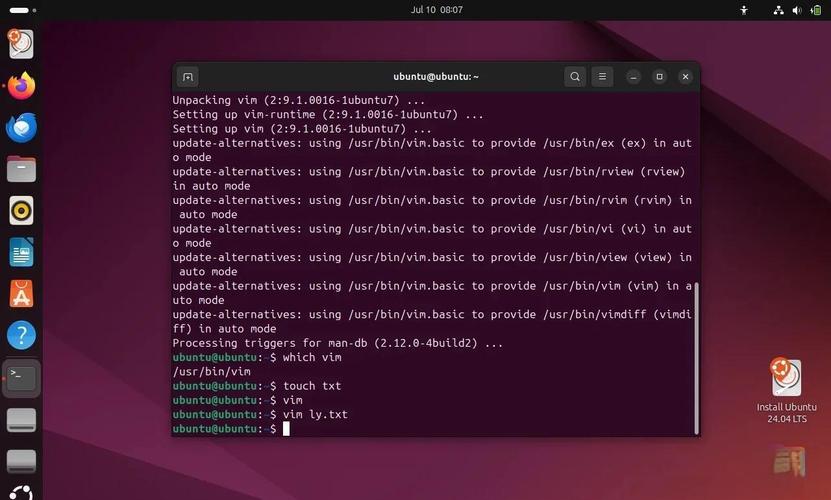
Install Vim
While Ubuntu comes with Vim by default, it's often a minimal version. We'll install the full version with Python support, which is crucial for some plugins.
sudo apt install -y vim
Install a Build System for Vim Plugins
Some of the best Vim plugins are written in C and need to be compiled. We need build-essential and libpython3-dev to link Vim with Python.
sudo apt install -y build-essential libpython3-dev
You now have all the foundational tools installed.
Part 2: The Vim Configuration (vimrc)
This is the heart of the setup. A .vimrc file is Vim's configuration file, located in your home directory (~/.vimrc). We will create one with modern, powerful plugins for Python development.
Install a Plugin Manager: vim-plug
vim-plug is a simple, fast, and powerful plugin manager. It's easy to set up.
# Download vim-plug
curl -fLo ~/.vim/autoload/plug.vim --create-dirs \
    https://raw.githubusercontent.com/junegunn/vim-plug/master/plug.vim
Create the .vimrc File
Now, let's create the .vimrc file. Open it in Vim:
vim ~/.vimrc
Paste the following configuration into the file. It's heavily commented to explain what each part does.
" =====================================================================
" =                   Basic Vim Settings                               =
" =====================================================================
" Set the leader key to a comma. It's easier to reach than the default backslash.
let mapleader = ","
" Enable line numbers
set number
" Show the current command in the bottom bar
set showcmd
" Enable syntax highlighting
syntax on
" Set the encoding to UTF-8
set encoding=utf-8
" Set the file format to Unix (avoids issues with line endings)
set fileformat=unix
" Enable searching as you type, but highlight matches
set incsearch
set hlsearch
" Ignore case in searches unless a capital letter is used
set ignorecase
set smartcase
" Disable automatic creation of backup and swap files
set nobackup
set nowritebackup
set noswapfile
" Better undo history
set undofile
set undodir=~/.vim/undodir
" Set a nice theme
colorscheme gruvbox
set background=dark " or light, depending on your preference
" =====================================================================
" =                   Plugin Management (vim-plug)                     =
" =====================================================================
" Specify a directory for plugins
call plug#begin('~/.vim/plugged')
" === Code Completions, Intellisense, and Linting ===
"coc.nvim: A modern, extensible completion engine.
Plug 'neoclide/coc.nvim', {'branch': 'release'}
" === File Management ===
"NERDTree: A file explorer tree for Vim.
Plug 'preservim/nerdtree'
"NERDTree Git Plugin: Shows git status in NERDTree.
Plug 'Xuyuanp/nerdtree-git-plugin'
"vim-fugitive: A Git wrapper so awesome, it should be illegal.
Plug 'tpope/vim-fugitive'
" === Code Navigation and Searching ===
"ctrlp: Fuzzy file, buffer, mru, tag, etc. finder.
Plug 'kien/ctrlp.vim'
"Tagbar: Displays tags in a window, ordered by scope.
Plug 'preservim/tagbar'
" === Python-Specific Plugins ===
"autopep8: Automatically formats Python code to conform to PEP8 style.
Plug 'tell-k/vim-autopep8'
"vim-pylint: Lint Python code using Pylint.
Plug 'pycqa/pylint'
"python-mode: A powerful Python plugin for Vim.
Plug 'python-mode/python-mode', { 'for': 'python', 'do': 'pip install -r requirements.txt' }
" === Visual Enhancement ===
"vim-airline: A statusline for Vim that is light and configurable.
Plug 'vim-airline/vim-airline'
"vim-airline-themes: Themes for vim-airline.
Plug 'vim-airline/vim-airline-themes'
" === Code Editing ===
"vim-surround: Add/delete/change surroundings (quotes, brackets, etc.).
Plug 'tpope/vim-surround'
"vim-commentary: Toggle comments easily.
Plug 'tpope/vim-commentary'
"vim-repeat: Enable repeating more plugins with the `.` command.
Plug 'tpope/vim-repeat'
" Initialize plugin system
call plug#end()
" =====================================================================
" =                   Plugin-Specific Key Mappings                     =
" =====================================================================
" --- NERDTree ---
" Open NERDTree with <leader>n
nnoremap <leader>n :NERDTreeToggle<CR>
" Close NERDTree if it's the only window open
autocmd bufenter * if (winnr("$") == 1 && exists("b:NERDTree") && b:NERDTree.isTabTree()) | q | endif
" --- Tagbar ---
" Open Tagbar with <leader>t
nnoremap <leader>t :TagbarToggle<CR>
" --- vim-fugitive ---
" Git status
nnoremap <leader>gs :Git<CR>
" Diff current file with the last commit
nnoremap <leader>gd :Gdiff<CR>
" --- ctrlp ---
" Open ctrlp to find files
nnoremap <leader>f :CtrlP<CR>
" --- python-mode ---
" Run the current Python file
nnoremap <leader>r :w !python3 %<CR>
" --- coc.nvim ---
" Use tab for trigger completion with characters ahead and navigate.
" NOTE: Use command ':verbose imap <tab>' to make sure tab is not mapped by
" other plugin before putting this into your config.
inoremap <silent><expr> <TAB>
      \ coc#pum#visible() ? coc#pum#next(1) :
      \ CheckBackspace() ? "\<TAB>" :
      \ coc#refresh()
inoremap <expr><S-TAB> coc#pum#visible() ? coc#pum#prev(1) : "\<C-h>"
" Make <CR> to accept selected completion item or notify coc.nvim to format
" <C-g>u breaks current undo, please make your own choice.
inoremap <silent><expr> <CR> coc#pum#visible() ? coc#pum#confirm() : "\<CR>"
" Use `[g` and `]g` to navigate diagnostics
" Use `:CocDiagnostics` to get all diagnostics of current buffer in location list.
nmap <silent> [g <Plug>(coc-diagnostic-prev)
nmap <silent> ]g <Plug>(coc-diagnostic-next)
" GoTo code navigation.
nmap <silent> gd <Plug>(coc-definition)
nmap <silent> gy <Plug>(coc-type-definition)
nmap <silent> gi <Plug>(oc-implementation)
nmap <silent> gr <Plug>(coc-references)
" Symbol renaming.
nmap <leader>rn <Plug>(coc-rename)
" Formatting selected code.
xmap <leader>f  <Plug>(coc-format-selected)
nmap <leader>f  <Plug>(coc-format-selected)
" --- Autopep8 ---
" Format the current file with autopep8
nnoremap <leader>p :Autopep8<CR>
" =====================================================================
" =                   Final Tweaks                                     =
" =====================================================================
" Split windows to the right and bottom
set splitright
set splitbelow
" Enable mouse support (useful for resizing splits)
set mouse=a
" Show trailing whitespace and make it red
set list listchars=trail:·,tab:▸\
highlight Trail ctermfg=red
Install the Plugins
Save the file (w) and then close Vim (q).
Now, open Vim again. It will detect the new plugins in your .vimrc and ask you to install them. Type PlugInstall and press Enter.
Vim will download and install all the plugins. For some, like coc.nvim, it might ask you to install language servers. We'll cover that next.
Part 3: The Workflow (Making it Python-Friendly)
Your Vim is now set up! Here’s how to use it for Python development.
Install Language Servers for coc.nvim
coc.nvim provides IntelliSense (autocompletion, go-to-definition, etc.). To do this for Python, you need to install a Language Server Protocol (LSP) server.
The most popular one is pyright.
# First, install Node.js (required for coc.nvim)
sudo apt install -y nodejs npm
# Then, install the Python language server using coc
# Open Vim and run this command
:CocInstall pyright
Now, when you open a .py file, coc.nvim will automatically use pyright to provide you with powerful Python intelligence.
Essential Vim Commands for Python
Here's a cheat sheet for the most common tasks:
| Action | Command(s) | Description |
|---|---|---|
| File Operations | ||
| Open a file | e path/to/file.py |
Edit a file. |
| Save | w |
Write (save) the file. |
| Save and Quit | wq or x |
|
| Quit without saving | q! |
|
| Navigation | ||
| Go to line number | 42 (then Enter) |
Jump to line 42. |
| Search for text | /text then n (next) / N (previous) |
|
| Code Editing | ||
| Delete a line | dd |
|
| Copy (yank) a line | yy |
|
| Paste | p |
|
| Undo | u |
|
| Redo | <Ctrl-r> |
|
| Python-Specific | ||
| Run the current script | <leader>r (defined in our .vimrc) |
Saves the file and runs it with python3. |
| Format code (PEP8) | <leader>p (defined in our .vimrc) |
Runs autopep8 on the current file. |
| Toggle comments | gcc (on a line) or gc in visual mode |
Uses the vim-commentary plugin. |
| Windows & Tabs | ||
| Split window vertically | vsplit or <leader>sv |
|
| Split window horizontally | split or <leader>sh |
|
| Switch between windows | <Ctrl-w> then h/j/k/l |
|
| Close current window | close or <Ctrl-w>c |
|
| Open NERDTree (file tree) | <leader>n |
|
| Open Tagbar (symbols/tags) | <leader>t |
Shows classes, functions, etc. |
Recommended Workflow
- Start Vim:
vim - Open NERDTree: Press
,nto see your project files. - Open a Python file: Use the arrow keys in NERDTree to navigate and press
Enteron a file. - See Symbols: Press
,tto open Tagbar and see the structure of your Python code. - Code: Start typing. You'll get autocompletion from
coc.nvim. - Navigate: Place your cursor on a function name and press
gdto go to its definition. - Format: When you're done with a section, press
,pto format it according to PEP8. - Run: Press
,rto run your script. The output will appear in a new command window at the bottom.
You now have a highly efficient, professional, and customized Python development environment right in your terminal. Happy coding