Of course! Using Python to interact with VMware APIs is a very common and powerful task for automation, management, and integration. Here’s a comprehensive guide covering the main APIs, the necessary tools, and practical code examples.
Overview of VMware APIs
VMware offers several APIs, and choosing the right one depends on your goal:
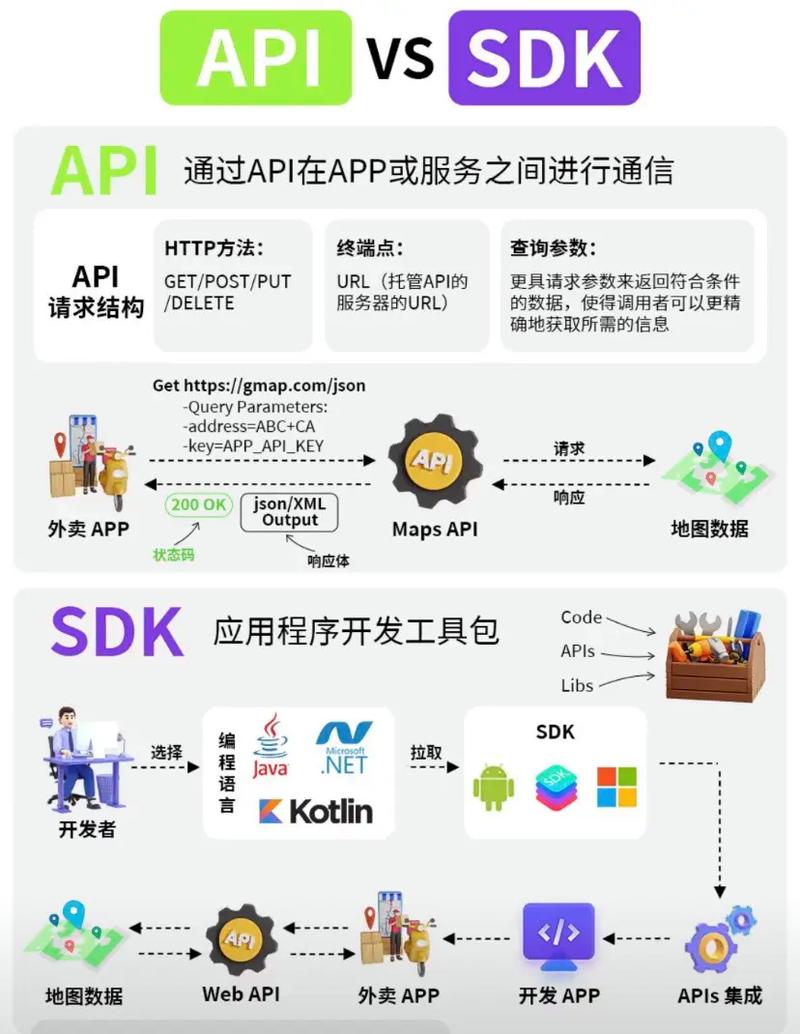
- vSphere API (vSphere Web Services SDK /
pyVmomi): This is the most common and powerful API for managing vSphere infrastructure (ESXi hosts, vCenter Servers, VMs, datastores, networks, etc.). It's a comprehensive, object-oriented API that covers almost every feature. - vRealize Automation (vRA) API: Used for orchestrating and automating the entire cloud lifecycle, from provisioning VMs to managing blueprints and policies.
- vRealize Operations (vROps) API: Used for monitoring, analysis, and automation of performance and capacity management.
- VMware Cloud on AWS (VMC) API: A specific API for managing your VMware SDDC on the AWS cloud.
For most general-purpose infrastructure automation, the vSphere API is the one you'll want to use.
The Main Tool: pyVmomi
pyVmomi is the official Python SDK for the vSphere API. It's a thin, auto-generated wrapper around the VMware vSphere API (SOAP-based).
- What it is: A Python library that maps the vSphere API's complex data types and methods into Python objects and functions.
- Key Feature: It uses a "connected object" model. You connect to a vCenter/ESXi server, get a "Service Instance" object, and from there, you can navigate the entire inventory (Datacenters, Clusters, Hosts, VMs, etc.).
Step-by-Step Guide: Connecting to vCenter with pyVmomi
Let's walk through the process of setting up your environment and writing a simple script to list all virtual machines in a vCenter instance.
Step 1: Prerequisites
- Python 3: Ensure you have Python 3 installed.
- vCenter Server: You need access to a vCenter Server or an ESXi host.
- Permissions: You need a user account with at least "Read-only" permissions in vCenter. For more complex tasks, you'll need higher privileges.
- Network Access: Your Python environment must be able to reach the vCenter server on port 443 (the default for the vSphere API).
Step 2: Installation
Install the pyVmomi library using pip. It's highly recommended to use a virtual environment.
# Create a virtual environment (optional but good practice)
python -m venv venv_vmware
source venv_vmware/bin/activate  # On Windows: venv_vmware\Scripts\activate
# Install pyVmomi
pip install pyVmomi
Step 3: The Python Code
Here is a well-commented Python script that connects to vCenter and lists all VMs.
list_vms.py
# Import necessary modules from pyVmomi
from pyVmomi import vim
from pyVim.connect import SmartConnect, Disconnect
import ssl
import atexit
import sys
# --- Configuration ---
# Replace with your vCenter IP/FQDN and credentials
VCENTER_HOST = 'your_vcenter_ip_or_fqdn'
VCENTER_USER = 'your_username'
VCENTER_PASSWORD = 'your_password'
VCENTER_PORT = 443
def get_args():
    """Parses command-line arguments."""
    # For this simple script, we'll hardcode credentials.
    # In a real-world scenario, use environment variables or a secure config file.
    return {
        'host': VCENTER_HOST,
        'user': VCENTER_USER,
        'pwd': VCENTER_PASSWORD,
        'port': VCENTER_PORT
    }
def main():
    """Main function to connect to vCenter and list VMs."""
    args = get_args()
    # --- SSL Certificate Handling ---
    # By default, pyVmomi verifies SSL certificates.
    # If you have a self-signed certificate, you can disable verification.
    # WARNING: Disabling verification is less secure. Use with caution.
    context = ssl.SSLContext(ssl.PROTOCOL_TLSv1_2)
    # context.verify_mode = ssl.CERT_NONE # Uncomment to disable SSL verification
    try:
        # --- Connect to vCenter ---
        print(f"Connecting to {args['host']}...")
        # SmartConnect returns a ServiceInstance object
        si = SmartConnect(
            host=args['host'],
            user=args['user'],
            pwd=args['pwd'],
            port=args['port'],
            sslContext=context
        )
        # Register a function to be called on script exit to disconnect
        atexit.register(Disconnect, si)
        print("Successfully connected!")
        # --- Get the Content Object ---
        # The content object is the root object for most vSphere API operations
        content = si.RetrieveContent()
        # --- Get the Container View ---
        # A ContainerView allows you to navigate the inventory.
        # We want to find all VirtualMachine objects.
        # viewType: The type of object to find (e.g., vim.VirtualMachine)
        # recursive: Whether to search in child containers (e.g., inside folders)
        container = content.viewManager.CreateContainerView(
            content.rootFolder,
            [vim.VirtualMachine],
            True
        )
        vms = container.view
        container.Destroy()
        # --- List the VMs ---
        print("\n--- List of Virtual Machines ---")
        if not vms:
            print("No virtual machines found.")
        else:
            for vm in vms:
                # The 'runtime.powerState' attribute tells us if the VM is powered on, off, or suspended.
                print(f"Name: {vm.name}\n"
                      f"  - IP Address: {vm.guest.ipAddress if vm.guest.ipAddress else 'N/A'}\n"
                      f"  - Power State: {vm.runtime.powerState}\n"
                      f"  - UUID: {vm.config.uuid}\n")
    except vim.fault.InvalidLogin as e:
        print(f"Login failed: {e}")
        sys.exit(1)
    except Exception as e:
        print(f"An error occurred: {e}")
        sys.exit(1)
if __name__ == "__main__":
    main()
Step 4: Run the Script
Save the code as list_vms.py, update the configuration variables at the top, and run it from your terminal:
python list_vms.py
You should see output similar to this:
Connecting to your_vcenter_ip_or_fqdn...
Successfully connected!
--- List of Virtual Machines ---
Name: WebServer-01
  - IP Address: 192.168.1.101
  - Power State: poweredOn
  - UUID: 423fc3b2-5d03-4b1c-8b5a-1e2f3a4b5c6d
Name: Database-Server
  - IP Address: N/A
  - Power State: poweredOff
  - UUID: 12345678-abcd-1234-abcd-1234567890ab
Name: Test-Linux-VM
  - IP Address: 192.168.1.103
  - Power State: suspended
  - UUID: fedcba98-1234-5678-9012-fedcba098765
Advanced Example: Powering On a VM
Now, let's extend the script to power on a specific VM. This involves finding the VM by name and then calling its PowerOnVM_Task method.
power_on_vm.py
from pyVmomi import vim
from pyVim.connect import SmartConnect, Disconnect
import ssl
import atexit
import sys
import time
# --- Configuration ---
VCENTER_HOST = 'your_vcenter_ip_or_fqdn'
VCENTER_USER = 'your_username'
VCENTER_PASSWORD = 'your_password'
VCENTER_PORT = 443
VM_TO_POWER_ON = 'WebServer-01' # Name of the VM to power on
def get_vm_by_name(content, vm_name):
    """Searches for a VM by its name and returns the object."""
    container = content.viewManager.CreateContainerView(
        content.rootFolder, [vim.VirtualMachine], True
    )
    for vm in container.view:
        if vm.name == vm_name:
            container.Destroy()
            return vm
    container.Destroy()
    return None
def main():
    args = {
        'host': VCENTER_HOST,
        'user': VCENTER_USER,
        'pwd': VCENTER_PASSWORD,
        'port': VCENTER_PORT
    }
    context = ssl.SSLContext(ssl.PROTOCOL_TLSv1_2)
    # context.verify_mode = ssl.CERT_NONE # For self-signed certs
    try:
        si = SmartConnect(**args, sslContext=context)
        atexit.register(Disconnect, si)
        content = si.RetrieveContent()
        # Find the VM
        vm = get_vm_by_name(content, VM_TO_POWER_ON)
        if not vm:
            print(f"VM '{VM_TO_POWER_ON}' not found.")
            sys.exit(1)
        print(f"Found VM: {vm.name}")
        # Check current power state
        if vm.runtime.powerState == vim.VirtualMachinePowerState.poweredOn:
            print(f"VM '{VM_TO_POWER_ON}' is already powered on.")
            sys.exit(0)
        # Power on the VM
        print(f"Powering on VM '{VM_TO_POWER_ON}'...")
        task = vm.PowerOnVM_Task()
        # Wait for the task to complete
        while task.info.state not in [vim.TaskInfo.State.success, vim.TaskInfo.State.error]:
            time.sleep(2) # Wait for 2 seconds before checking again
        if task.info.state == vim.TaskInfo.State.success:
            print(f"Successfully powered on VM '{VM_TO_POWER_ON}'.")
        else:
            print(f"Error powering on VM '{VM_TO_POWER_ON}': {task.info.error}")
    except Exception as e:
        print(f"An error occurred: {e}")
        sys.exit(1)
if __name__ == "__main__":
    main()
Key Concepts to Understand
- ServiceInstance (
si): Your entry point to the API. It holds the root of the inventory. - Content (
content): Retrieved from the ServiceInstance, it's the main object for accessing the API's core services (likeviewManager,searchIndex). - Managed Object References (MoRefs): Almost every object in vCenter (VM, Host, Datastore) is a "managed object" and has a unique
selfattribute (e.g.,vm-123). This MoRef is how you refer to objects in subsequent API calls. - Tasks: Operations like power on, create, or delete are not instantaneous. They return a
Taskobject. You must monitor the task's state (successorerror) to know if the operation completed. - Property Collector: For more efficient queries, especially in large environments, use the Property Collector. It allows you to fetch specific properties for a large set of objects in a single API call, which is much faster than fetching objects one by one.
Alternatives to pyVmomi
While pyVmomi is the standard, other tools can make your life easier:
pyVmomi-helper: A community library that provides helper functions to makepyVmomiless verbose. Great for beginners.vSphere Automation SDK (REST): Modern VMware APIs (like vRA, vROps, and newer vCenter features) are primarily REST-based. If you are working with these, you'll use therequestslibrary to make HTTP calls to API endpoints. The official documentation for each product provides REST API references.- Ansible with
community.vmware: If you prefer a declarative, agentless approach, Ansible modules are the way to go. They usepyVmomiunder the hood but let you write playbooks instead of scripts. This is excellent for configuration management and orchestration. - PowerCLI: If you come from a Windows/PowerShell background, PowerCLI is the undisputed king for vSphere automation. It's a PowerShell module with a massive command set. It can be used on Linux via PowerShell Core, but
pyVmomiis often more native to the Python ecosystem.