Of course! Here is a comprehensive guide to using pip on Ubuntu, covering installation, upgrading, usage, and best practices.
What is pip?
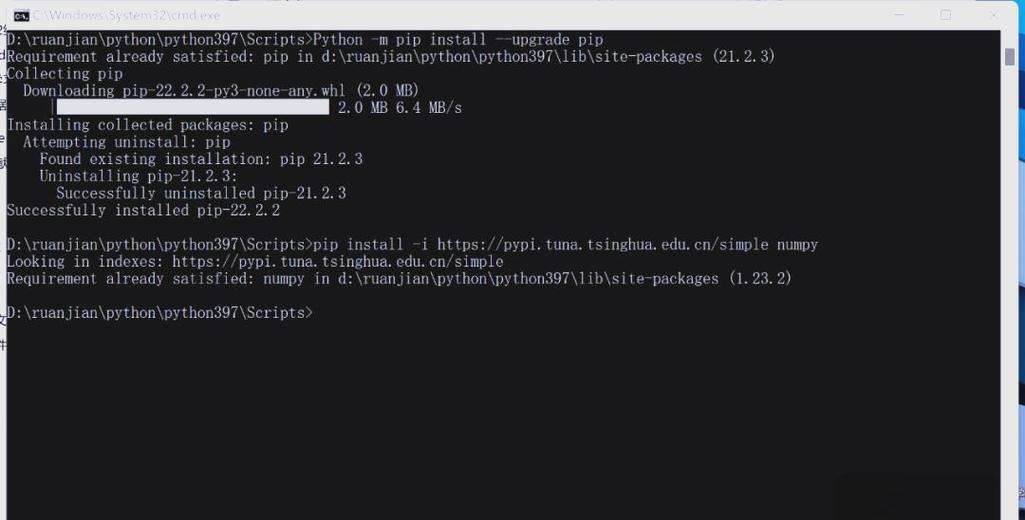
pip is the package installer for Python. It's a command-line tool that allows you to install and manage software packages (libraries and tools) from the Python Package Index (PyPI). Think of it like the "App Store" for your Python environment.
Installing pip on Ubuntu
The recommended way to install pip on modern Ubuntu systems (20.04 LTS and newer) is using the apt package manager. This ensures that pip is integrated well with your system's Python installation.
Step 1: Update Your Package List
First, it's always good practice to update your list of available packages.
sudo apt update
Step 2: Install pip
Now, install pip using apt. The package is usually named python3-pip to distinguish it from the version for Python 2.
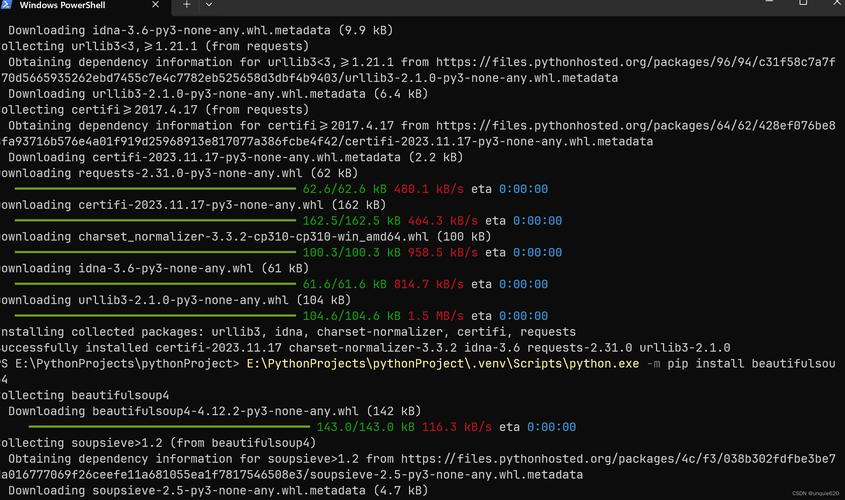
sudo apt install python3-pip
Step 3: Verify the Installation
You can check if pip was installed correctly and see its version by running:
pip3 --version
You should see output similar to this, showing the version of pip and the Python it's associated with:
pip 23.0.1 from /usr/lib/python3/dist-packages/pip (python 3.10)Note: You might see
pipinstead ofpip3in some newer Ubuntu versions. Ifpipdoesn't work, always trypip3to be explicit about using the Python 3 version.
Basic pip Usage
Here are the most common commands you'll use every day.
a. Installing a Package
This is the most frequent operation. Let's install the popular requests library, which is used for making HTTP requests.
pip3 install requests
This will download and install the requests package and its dependencies.
b. Installing a Specific Version
If you need a specific version of a package (for compatibility, for example), you can specify it like this:
pip3 install requests==2.28.1
c. Upgrading a Package
To upgrade an already installed package to its latest version:
pip3 install --upgrade requests
d. Uninstalling a Package
To remove a package that you no longer need:
pip3 uninstall requests
You will be prompted to confirm the removal.
e. Listing Installed Packages
To see a list of all packages installed in your current Python environment:
pip3 list
f. Getting Information About a Package
To see detailed information about a specific package, such as its version, location, and dependencies:
pip3 show requests
Crucial Best Practice: Using Virtual Environments
Why use virtual environments? Imagine you are working on two projects:
- Project A needs
requestsversion25.0. - Project B needs
requestsversion30.0.
If you install both globally, they will conflict. A virtual environment creates an isolated space for each project, so its packages don't interfere with other projects or your system's Python.
How to Use a Virtual Environment
Step 1: Install venv
The venv module is included with Python 3, but you need to install the system package to make it available.
sudo apt install python3-venv
Step 2: Create a Project Directory and a Virtual Environment
Let's say you have a project folder called my_project.
mkdir my_project
cd my_project
Now, create the virtual environment inside this folder. A common convention is to name the environment folder venv.
python3 -m venv venv
This creates a venv folder containing a separate Python interpreter and pip.
Step 3: Activate the Virtual Environment
Before you can use the environment, you need to "activate" it. This modifies your shell's path to point to the Python and pip inside the venv folder.
source venv/bin/activate
Your command prompt will change to show that the environment is active. It will look something like this:
(venv) user@hostname:~/my_project$ Step 4: Work Inside the Environment
Now, any pip or python command you run will use the ones from the active environment. It's safe to install packages here.
# This installs 'requests' ONLY in the 'venv' environment
pip install requests
Step 5: Deactivate the Environment When you are finished working, you can exit the virtual environment by simply typing:
deactivate
Your prompt will return to normal.
Common Problems and Solutions
Problem: ModuleNotFoundError: No module named 'pip'
You might see this error if you are trying to run pip from a standard Python shell that doesn't have it installed.
Solution: Always use pip3 from your terminal, or ensure you are in an activated virtual environment.
Problem: PermissionError: [Errno 13] Permission denied
This happens when you try to install a package globally without sudo, or when you try to install inside a virtual environment without activating it first.
Solution:
- Inside a virtual environment: Always activate it with
source venv/bin/activatefirst. You do not needsudo. - Globally (not recommended): Use
sudo pip3 install <package>. However, using virtual environments is the better practice.
Problem: Using the Wrong Python Version
You might have both Python 2 and Python 3 installed. Using pip might point to the old Python 2.
Solution: Always use the explicit commands python3 and pip3 to ensure you are using the modern Python 3 version.
Summary Table
| Command | Description |
|---|---|
sudo apt install python3-pip |
Installs pip for Python 3 using the system package manager. |
pip3 install <package> |
Installs a package. |
pip3 install --upgrade <package> |
Upgrades a package to its latest version. |
pip3 uninstall <package> |
Uninstalls a package. |
pip3 list |
Lists all installed packages in the current environment. |
pip3 show <package> |
Shows detailed information about a specific package. |
python3 -m venv venv |
Creates a new virtual environment named venv. |
source venv/bin/activate |
Activates the virtual environment. |
deactivate |
Deactivates the current virtual environment. |