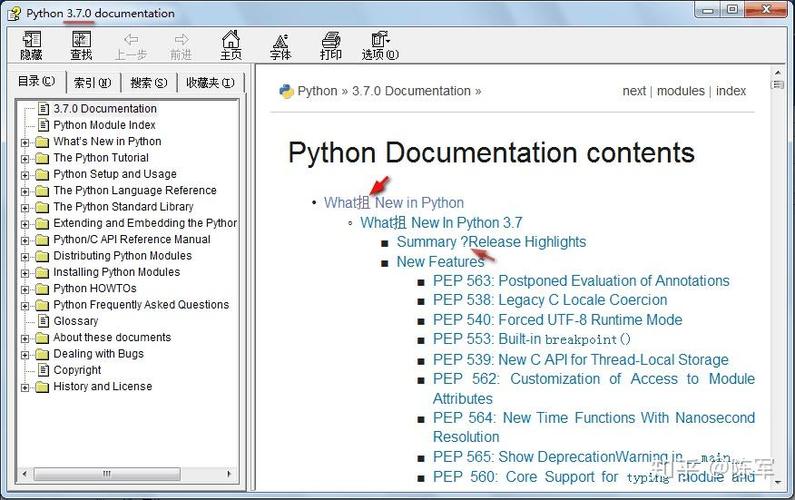
Of course! Creating a CHM (Compiled HTML Help) file from a Python script is a common need for documenting libraries, tools, or applications. The process involves two main steps:
- Create the HTML source files: This includes your documentation content, images, and a table of contents (TOC).
- Compile those files into a
.chmfile: This is the step a Python script can automate.
Here’s a complete guide, from manual setup to a fully automated Python script.
Step 1: The Manual Way (Understanding the Process)
Before we automate it, it's crucial to understand how CHM files are created. The standard tool for this on Windows is the HTML Help Workshop from Microsoft.
-
Install HTML Help Workshop:
- Download it from the Microsoft Download Center.
- Install it. Make sure to note the installation path (e.g.,
C:\Program Files (x86)\HTML Help Workshop).
-
Create Your HTML Content:
 (图片来源网络,侵删)
- Create a folder for your project, for example,
my_docs. - Inside
my_docs, create your HTML files. A good structure is:my_docs/ ├── index.html # The main entry page ├── getting_started.html ├── advanced_topics.html └── images/ └── logo.png
- Create a folder for your project, for example,
-
Create the Table of Contents (
.hhcfile):- This is the most important file for navigation. It's a simple HTML-like file that defines the tree structure of your help file.
- You can create it manually or use a tool like VimHelpCompiler or Pothos Help Compiler.
- Example
my_toc.hhc:<!DOCTYPE HTML PUBLIC "-//IETF//DTD HTML//EN"> <HTML> <HEAD> <meta name="GENERATOR" content="Microsoft® HTML Help Workshop 4.1"> <!-- Sitemap 1.0 --> </HEAD><BODY> <OBJECT type="text/site properties"> <param name="Window Styles" value="0x800227"> <param name="ImageType" value="Folder"> </OBJECT> <UL> <LI> <OBJECT type="text/sitemap"> <param name="Name" value="My Awesome Project"> <param name="Local" value="index.html"> </OBJECT> <UL> <LI> <OBJECT type="text/sitemap"> <param name="Name" value="Getting Started"> <param name="Local" value="getting_started.html"> </OBJECT> <LI> <OBJECT type="text/sitemap"> <param name="Name" value="Advanced Topics"> <param name="Local" value="advanced_topics.html"> </OBJECT> </UL> </UL> </BODY></HTML>
-
Create a Project File (
.hhpfile):-
This file tells the HTML Help Compiler which files to include and what to name the output.
-
Create a file named
my_project.hhpin themy_docsfolder. (图片来源网络,侵删)
 -
Example
my_project.hhp:[OPTIONS] Compatibility=1.1 Compiled file=my_project.chm Contents file=my_toc.hhc Default topic=index.html Display compile progress=Yes Full-text search=Yes Title=My Awesome Project Documentation [FILES] index.html getting_started.html advanced_topics.html images/logo.png
-
-
Compile the CHM:
- Open the HTML Help Workshop.
- Go to
File -> Compile.... - Select your
my_project.hppfile. - Click
Compile. It will generatemy_project.chm.
Step 2: The Automated Python Script
Now, let's automate this process. The script will:
- Read your documentation source (e.g., from Markdown files).
- Generate the necessary HTML files.
- Generate the
.hhc(Table of Contents) file. - Generate the
.hhp(Project) file. - Call the
hhc.execompiler to create the final.chmfile.
Prerequisites
-
HTML Help Workshop: Must be installed (see Step 1).
-
Python Libraries:
markdown: To convert Markdown to HTML.Jinja2: For powerful and clean HTML templating.
Install them via pip:
pip install markdown Jinja2
The Python Script (create_chm.py)
This script is designed to be flexible. You define your documentation structure in a dictionary, and it builds everything for you.
import os
import subprocess
import markdown
from jinja2 import Environment, FileSystemLoader
# --- Configuration ---
# IMPORTANT: Set the path to your HTML Help Workshop hhc.exe
# This is often the default installation path.
HHC_COMPILER_PATH = r"C:\Program Files (x86)\HTML Help Workshop\hhc.exe"
# Define your documentation structure
# 'file' is the source markdown file is the title for the TOC and page
# 'children' is a list of child pages (for nested structure)
DOCS_STRUCTURE = {: "My Awesome Project",
    "file": "index.md",
    "children": [
        {
            "title": "Introduction",
            "file": "intro.md",
            "children": [
                {"title": "Getting Started", "file": "getting_started.md"},
                {"title": "Installation", "file": "installation.md"},
            ]
        },
        {
            "title": "Advanced Topics",
            "file": "advanced.md",
            "children": [
                {"title": "API Reference", "file": "api.md"},
                {"title": "Contributing", "file": "contributing.md"},
            ]
        }
    ]
}
# --- Script Logic ---
def render_template(template_name, **context):
    """Renders a Jinja2 template from the 'templates' directory."""
    env = Environment(loader=FileSystemLoader('templates'))
    template = env.get_template(template_name)
    return template.render(**context)
def generate_html(structure, output_dir="build", base_path=""):
    """Recursively generates HTML files from the documentation structure."""
    html_content = ""
    toc_data = []
    # Convert the current markdown file to HTML
    md_file = os.path.join(base_path, structure['file'])
    if os.path.exists(md_file):
        with open(md_file, 'r', encoding='utf-8') as f:
            md_content = f.read()
        html_content = markdown.markdown(md_content, extensions=['fenced_code', 'tables'])
    else:
        html_content = f"<h1>{structure['title']}</h1>\n<p><em>Source file {md_file} not found.</em></p>"
    # Render the full HTML page using a template
    full_html = render_template(
        "page.html",
        title=structure['title'],
        content=html_content
    )
    # Define the output HTML file path
    html_filename = os.path.splitext(structure['file'])[0] + ".html"
    output_html_path = os.path.join(output_dir, html_filename)
    # Write the HTML file
    with open(output_html_path, 'w', encoding='utf-8') as f:
        f.write(full_html)
    # Add to TOC data
    toc_entry = {
        "Name": structure['title'],
        "Local": html_filename,
        "Children": []
    }
    toc_data.append(toc_entry)
    # Recursively process children
    if 'children' in structure:
        for child in structure['children']:
            child_html, child_toc = generate_html(child, output_dir, base_path)
            toc_entry["Children"].extend(child_toc)
    return html_content, toc_data
def generate_hhc(toc_data, output_path):
    """Generates the HTML Help Contents (.hhc) file."""
    hhc_content = render_template(
        "toc.hhc",
        toc_data=toc_data
    )
    with open(output_path, 'w', encoding='utf-8') as f:
        f.write(hhc_content)
def generate_hpp(hhp_path, hhc_path, chm_filename, title):
    """Generates the HTML Help Project (.hhp) file."""
    hhp_content = render_template(
        "project.hhp",
        hhc_file=os.path.basename(hhc_path),
        chm_file=chm_filename,
        title=title
    )
    with open(hhp_path, 'w', encoding='utf-8') as f:
        f.write(hhp_content)
def compile_chm(hhp_path):
    """Compiles the .hhp file into a .chm file using hhc.exe."""
    if not os.path.exists(HHC_COMPILER_PATH):
        print(f"ERROR: hhc.exe not found at {HHC_COMPILER_PATH}")
        print("Please install HTML Help Workshop and update the HHC_COMPILER_PATH variable.")
        return False
    print(f"Compiling {hhp_path}...")
    try:
        # hhc.exe returns 0 on success, 1 on failure.
        # It prints to stdout/stderr, so we capture it.
        result = subprocess.run(
            [HHC_COMPILER_PATH, hhp_path],
            capture_output=True,
            text=True,
            check=False  # We'll check the return code manually
        )
        if result.returncode == 0:
            print("Successfully compiled CHM file!")
            return True
        else:
            print("Compilation failed.")
            print("STDOUT:", result.stdout)
            print("STDERR:", result.stderr)
            return False
    except Exception as e:
        print(f"An error occurred during compilation: {e}")
        return False
def main():
    """Main function to orchestrate the CHM creation process."""
    print("Starting CHM generation process...")
    # Define directories and file paths
    source_dir = "source"  # Where your .md files are
    build_dir = "build"    # Where temporary files will be created
    hhc_file = os.path.join(build_dir, "toc.hhc")
    hhp_file = os.path.join(build_dir, "project.hhp")
    chm_file = os.path.join(build_dir, "MyAwesomeProject.chm")
    # Create build directory if it doesn't exist
    os.makedirs(build_dir, exist_ok=True)
    # 1. Generate HTML files and Table of Contents data
    print("Generating HTML files and TOC data...")
    _, toc_data = generate_html(DOCS_STRUCTURE, build_dir, source_dir)
    # 2. Generate the .hhc file
    print(f"Generating {hhc_file}...")
    generate_hhc(toc_data, hhc_file)
    # 3. Generate the .hhp file
    print(f"Generating {hp_file}...")
    generate_hpp(hhp_file, hhc_file, os.path.basename(chm_file), DOCS_STRUCTURE['title'])
    # 4. Compile the CHM file
    if compile_chm(hhp_file):
        print(f"\nProcess complete. CHM file created at: {chm_file}")
    else:
        print("\nProcess failed. Check the errors above.")
if __name__ == "__main__":
    main()
Template Files
You need to create a templates directory in the same location as your script and place the following files inside it.
templates/page.html
This is the master template for each documentation page.
<!DOCTYPE html>
<html>
<head>
    <meta charset="UTF-8">{{ title }}</title>
    <style>
        body { font-family: sans-serif; line-height: 1.6; margin: 2em; }
        h1, h2, h3 { color: #333; }
        pre { background-color: #f4f4f4; padding: 1em; border-radius: 5px; }
        code { background-color: #f4f4f4; padding: 0.2em 0.4em; border-radius: 3px; }
    </style>
</head>
<body>
    <h1>{{ title }}</h1>
    {{ content | safe }}
</body>
</html>
templates/toc.hhc
This template generates the Table of Contents file.
<!DOCTYPE HTML PUBLIC "-//IETF//DTD HTML//EN">
<HTML>
<HEAD>
<meta name="GENERATOR" content="Microsoft® HTML Help Workshop 4.1">
<!-- Sitemap 1.0 -->
</HEAD><BODY>
<OBJECT type="text/site properties">
<param name="Window Styles" value="0x800227">
<param name="ImageType" value="Folder">
</OBJECT>
<UL>
{% for item in toc_data %}
<LI> <OBJECT type="text/sitemap">
<param name="Name" value="{{ item.Name }}">
<param name="Local" value="{{ item.Local }}">
</OBJECT>
{% if item.Children %}
<UL>
{% for child in item.Children %}
<LI> <OBJECT type="text/sitemap">
<param name="Name" value="{{ child.Name }}">
<param name="Local" value="{{ child.Local }}">
</OBJECT>
{% if child.Children %}
<UL>
{% for grandchild in child.Children %}
<LI> <OBJECT type="text/sitemap">
<param name="Name" value="{{ grandchild.Name }}">
<param name="Local" value="{{ grandchild.Local }}">
</OBJECT>
{% endfor %}
</UL>
{% endif %}
</LI>
{% endfor %}
</UL>
{% endif %}
</LI>
{% endfor %}
</UL>
</BODY></HTML>
templates/project.hhp
This template generates the Project file.
[OPTIONS]
Compatibility=1.1
Compiled file={{ chm_file }}
Contents file={{ hhc_file }}
Default topic=index.html
Display compile progress=Yes
Full-text search=Yes{{ title }}
[FILES]
# Note: The [FILES] section needs to be populated with all generated HTML files.
# A more advanced script would list them here automatically.
# For this example, we'll assume the script adds them or you add them manually.
index.html
intro.html
getting_started.html
installation.html
advanced.html
api.html
contributing.html
How to Run Everything
-
Project Structure: Create the following folder structure:
my_chm_project/ ├── create_chm.py ├── templates/ │ ├── page.html │ ├── toc.hhc │ └── project.hhp └── source/ ├── index.md ├── intro.md ├── getting_started.md ├── installation.md ├── advanced.md ├── api.md └── contributing.md -
Fill in the Markdown Files: Write your documentation in the
.mdfiles inside thesource/directory. For example,source/index.md:# Welcome to My Awesome Project! This is the main documentation for our fantastic project. ## Features * Easy to use * Powerful * Well-documented (you're reading it now!)
-
Run the Script: Open a command prompt or terminal, navigate to the
my_chm_projectdirectory, and run:python create_chm.py
-
Result: The script will create a
builddirectory containing your finalMyAwesomeProject.chmfile, along with the intermediate.hhcand.hhpfiles. You can now double-click the.chmfile to view your beautifully compiled documentation