Of course! Here is a comprehensive guide on how to create a ROS Publisher in Python, starting from the basics and moving to a complete, practical example.
What is a ROS Publisher?
A Publisher is one of the fundamental communication mechanisms in ROS. It's a node that sends (publishes) messages to a specific topic. Think of it like a radio station broadcasting a signal. Any number of listeners (called Subscribers) can tune in to that topic to receive the messages.
Core Concepts
- Node: An executable that performs a specific task. Your Python script will be a node.
- Topic: The name of the communication channel (e.g.,
/chatter,/cmd_vel). Publishers and Subscribers must use the same topic name to communicate. - Message: The data structure being sent. ROS has many standard message types (e.g.,
std_msgs/String,sensor_msgs/Image,geometry_msgs/Twist). You can also define your own. - Message Type: The data type of the message being published (e.g.,
std_msgs.msg.String).
Prerequisites
- ROS Installed: You must have a ROS distribution (e.g., Noetic, Foxy, Humble) installed and your environment sourced.
# For Noetic (Ubuntu 20.04)
source /opt/ros/noetic/setup.bash
- Python Environment: ROS Python tools (
rospy) are included with ROS. Ensure you havepython3andpython3-rospyinstalled.
Step-by-Step Guide: Creating a Simple Publisher
Let's create a publisher that sends a "Hello World!" message every second.
Step 1: Create a ROS Package
First, you need a package to hold your code. Navigate to your catkin workspace's src directory and run:
cd ~/catkin_ws/src
catkin_create_pkg py_publisher rospy std_msgs
py_publisher: The name of our new package.rospy: The Python client library for ROS.std_msgs: The package containing standard message types, likeString.
Step 2: Create the Python Script
Create a new file inside the py_publisher package.
cd ~/catkin_ws/src/py_publisher/scripts
touch simple_publisher.py
Make the script executable:
chmod +x simple_publisher.py
Step 3: Write the Publisher Code
Open simple_publisher.py in your favorite editor and add the following code. Explanations are included in the comments.
#!/usr/bin/env python3
# 1. Import necessary libraries
import rospy
from std_msgs.msg import String  # Import the String message type from std_msgs
# 2. Initialize the ROS node
# This function registers the node with the ROS master.
# The argument 'simple_publisher' is the name of the node.
# anonymous=True makes the name unique by adding a random number, preventing conflicts.
rospy.init_node('simple_publisher', anonymous=True)
# 3. Create a Publisher object
# rospy.Publisher(topic_name, message_type, queue_size)
# - topic_name: The name of the topic to publish to. '/chatter' is a common example.
# - message_type: The type of message to publish. We are using std_msgs.msg.String.
# - queue_size: The size of the outgoing message queue. 10 is a common default.
pub = rospy.Publisher('/chatter', String, queue_size=10)
# 4. Set the publishing rate
# rospy.Rate(hz) creates a Rate object that helps you control the loop's frequency.
# This loop will run at 1 Hz (once per second).
rate = rospy.Rate(1)
# 5. The main loop
# The loop continues as long as the ROS node is not shut down.
# rospy.is_shutdown() checks if Ctrl+C has been pressed.
while not rospy.is_shutdown():
    # 6. Create and publish the message
    # The message data is a simple string.
    hello_str = "hello world %s" % rospy.get_time()
    # Publish the message using the publish() method of the Publisher object.
    # rospy.loginfo() is used to print the message to the console. It's better than print()
    # because it also logs the message with a timestamp and severity level.
    rospy.loginfo(hello_str)
    pub.publish(hello_str)
    # 7. Sleep to maintain the publishing rate
    # rate.sleep() will pause the execution of the loop until the desired frequency is met.
    rate.sleep()
Step 4: Make the Script Executable (if not already done)
We did this in Step 2, but it's worth repeating. ROS needs this permission to run the script.
chmod +x ~/catkin_ws/src/py_publisher/scripts/simple_publisher.py
Step 5: Run the Publisher
-
Build your workspace:
 (图片来源网络,侵删)
cd ~/catkin_ws catkin_make source devel/setup.bash
-
Start the ROS Master: Open a new terminal and run:
roscore
-
Run your Publisher script: Open a second terminal, source your workspace, and run the script:
# In a new terminal
cd ~/catkin_ws
source devel/setup.bash
# Run the script
rosrun py_publisher simple_publisher.py
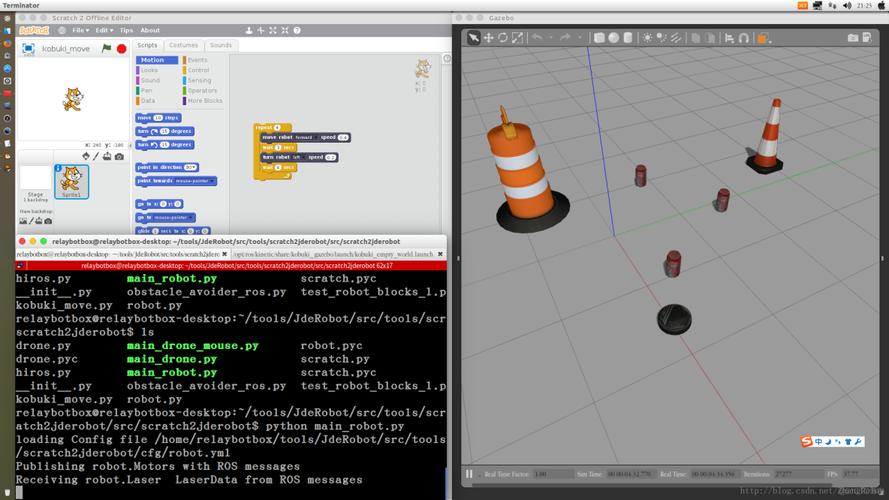
You should see output in the terminal like this, printing once per second:
[INFO] [167...]: hello world 167...
[INFO] [167...]: hello world 167...
[INFO] [167...]: hello world 167...
To stop the publisher, press Ctrl+C in its terminal.
Step 6: Verify with rostopic (The ROS Way)
You can use ROS command-line tools to see your publisher in action without even writing a subscriber.
-
List active topics: In a third terminal (while the publisher is running), type:
rostopic list
You should see
/chatterin the list. -
Echo the topic's messages: This command will print every message published to the
/chattertopic.rostopic echo /chatter
You will see the exact same "hello world" messages being printed in real-time.
-
Get topic information: This is very useful for debugging.
rostopic info /chatter
Output:
Type: std_msgs/String
Publishers: 1
Subscribers: 0
This confirms that your publisher is active and that the message type is correct.
Advanced Example: Publishing a Pose Message
Let's try a more complex message type, geometry_msgs/Pose, which contains position and orientation data.
Modify the Script
Create a new file, pose_publisher.py, in the scripts directory.
#!/usr/bin/env python3
import rospy
from geometry_msgs.msg import Pose  # Import the Pose message
def pose_publisher():
    # Initialize the node
    rospy.init_node('pose_publisher_node', anonymous=True)
    # Create a Publisher for the /pose topic
    pub = rospy.Publisher('/pose', Pose, queue_size=10)
    # Set the rate to 2 Hz
    rate = rospy.Rate(2)
    # Create a Pose message object
    pose_msg = Pose()
    while not rospy.is_shutdown():
        # --- Fill the message data ---
        # Position
        pose_msg.position.x = 1.0
        pose_msg.position.y = 2.0
        pose_msg.position.z = 0.0
        # Orientation (quaternion)
        pose_msg.orientation.x = 0.0
        pose_msg.orientation.y = 0.0
        pose_msg.orientation.z = 0.0
        pose_msg.orientation.w = 1.0  # w=1.0 corresponds to no rotation
        # Log and publish
        rospy.loginfo("Publishing Pose: x=%f, y=%f", pose_msg.position.x, pose_msg.position.y)
        pub.publish(pose_msg)
        # Sleep to maintain the rate
        rate.sleep()
if __name__ == '__main__':
    try:
        pose_publisher()
    except rospy.ROSInterruptException:
        pass
Run the New Publisher
- Make it executable:
chmod +x ~/catkin_ws/src/py_publisher/scripts/pose_publisher.py
- Run it (make sure
roscoreis still running):rosrun py_publisher pose_publisher.py
- Verify with
rostopic echo: In a new terminal:rostopic echo /pose
You will see the
Posemessage data being printed every 0.5 seconds (at 2 Hz).
Key Takeaways
rospy.init_node():